Generating
Generating images
Create still images with SimpliGen, from picking a style to refining the result.
Image generation is the fastest way to get started in SimpliGen.
The basic flow
- In the prompt builder, choose Image as the media type.
- Open a pack and pick an image preset (a style or model).
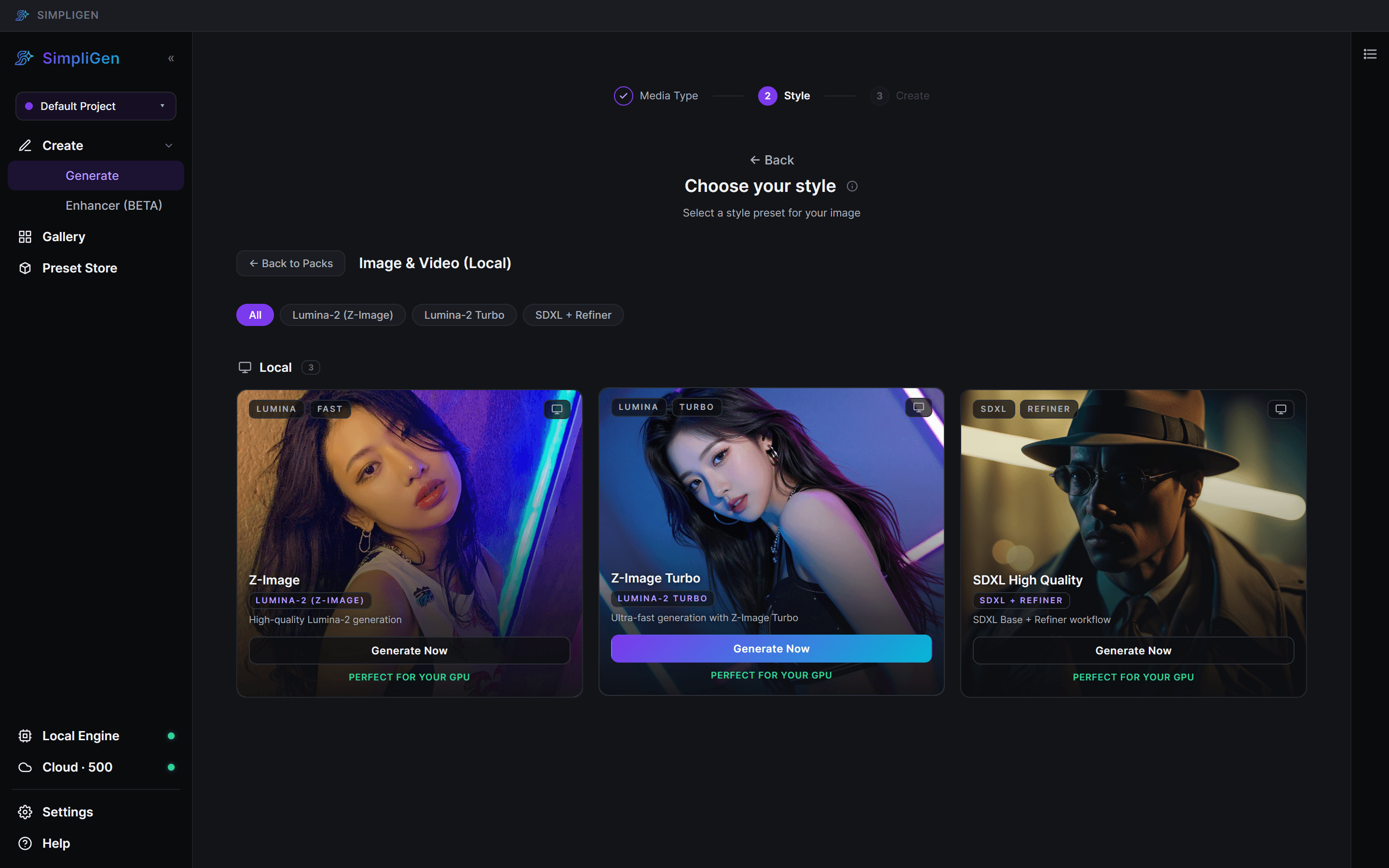
- Write your prompt, then generate.
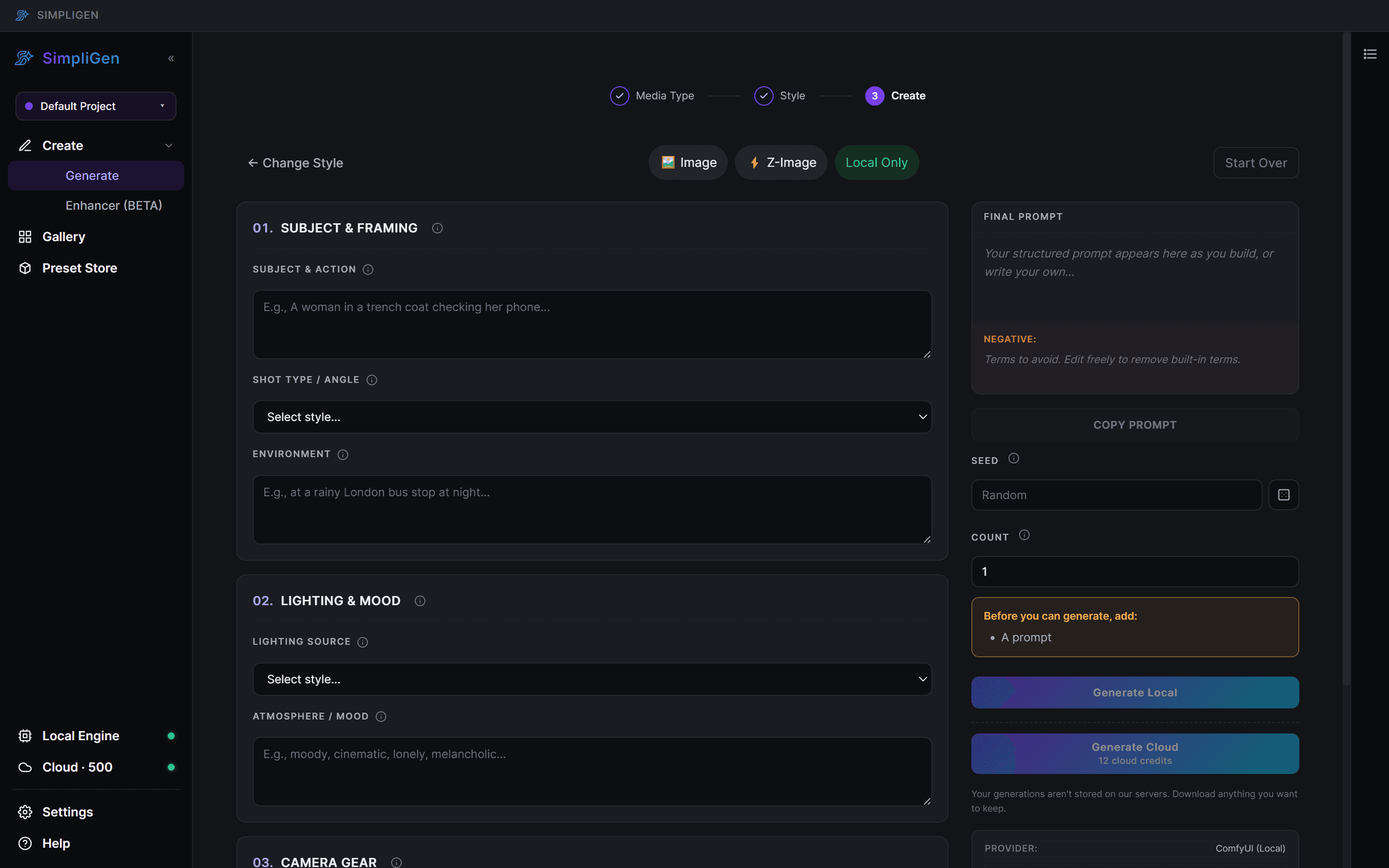
Your result appears in the Gallery when it finishes.
Cloud or local
You can run most image presets two ways:
- Cloud: generates on our GPUs using credits, with nothing to install. See Connecting SimpliGen Cloud.
- Local: generates on your own GPU for free after a one-time model download. The first time you use a local preset, SimpliGen downloads its models.
If a preset offers both, you will see a Generate Cloud button (with a credit cost sub-label) and a Prepare Local button (which becomes Generate Local once the model is ready). API-only presets show a single GENERATE IMAGE button instead.
Getting better results
- Match the preset to the goal. A photoreal preset and an anime preset want very different prompts.
- Set the right resolution and aspect ratio for where the image will be used.
- Use a negative prompt to remove recurring problems such as extra fingers or watermarks.
- Make a few at once. Generating a batch and picking the best is faster than tweaking one at a time.
- Add a LoRA to push a specific character or style on supported presets.
Refining
Found one you almost like? Reuse its seed (shown on the result) and change a few words, or nudge the advanced controls, to iterate while keeping the overall composition.