Queue and Gallery
Track generations in progress and browse finished results.
SimpliGen separates work in progress from finished results into two places: the Queue drawer and the Gallery.
The Queue
The Queue is a right-rail drawer. Click the Queue button on the right rail to open it. The drawer has three sections:
- Now running: the active job with live progress (cloud jobs show stage-by-stage updates: queued, generating step by step, uploading).
- Up next: jobs waiting to start. You can keep queuing more while others run.
- Needs attention: jobs that failed and need a look. See Reading a failed generation.
Cloud generations survive a restart. If you close SimpliGen mid generation, it reattaches to the running cloud job when you reopen it, so you do not lose a paid result.
The Gallery
Gallery is an item on the left rail. Finished generations land there, grouped by date (today, this week, and so on).
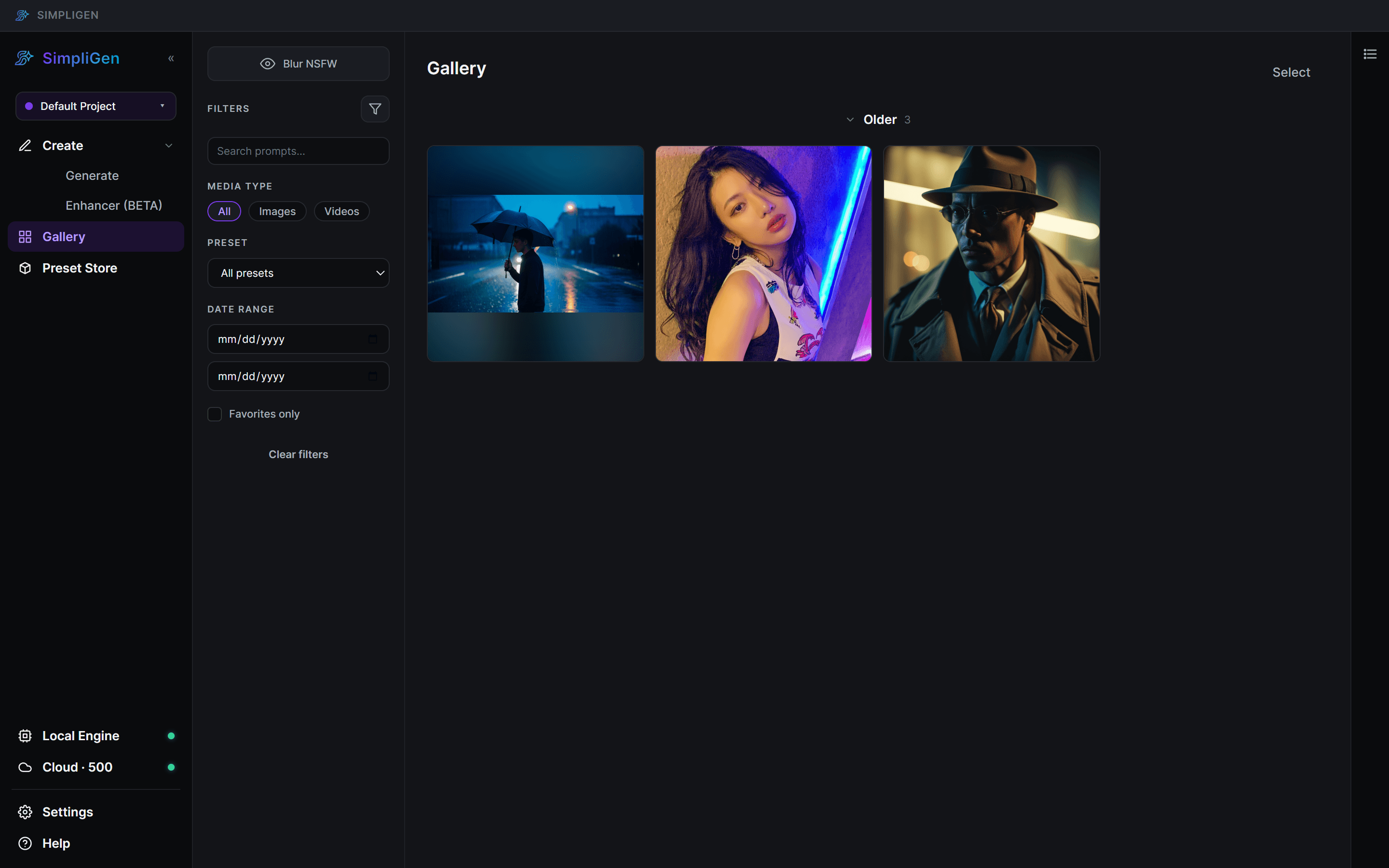
- Click any result to view it full size.
- Download anything you want to keep. Cloud results are not stored on our servers long term, so save the ones that matter.
- Use the Gallery to grab a result's seed when you want to refine or reproduce it.
Reaching them
Open the Queue drawer from the right rail to check progress on active or waiting jobs. Navigate to Gallery from the left rail to browse past work; both are accessible from anywhere in the app.