Using LoRAs
How to add, configure, and use LoRAs in SimpliGen.
What's a LoRA?
A LoRA is a small style or character add-on that you stack on top of an image model. They add a particular look, character, or effect without having to retrain the whole model. They're tiny compared to a full checkpoint, usually 50 to 300 MB.
1. Open the LoRA library
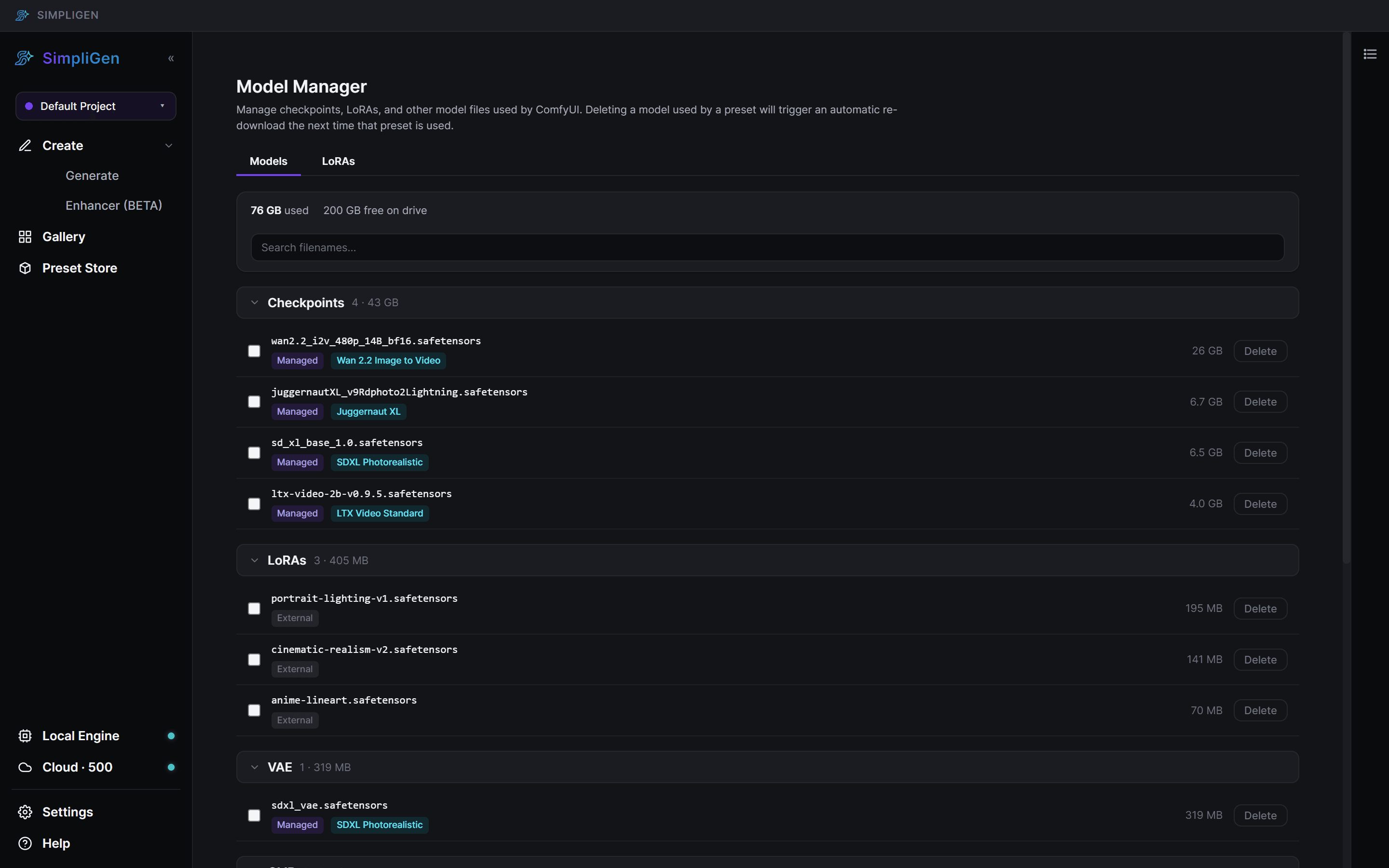
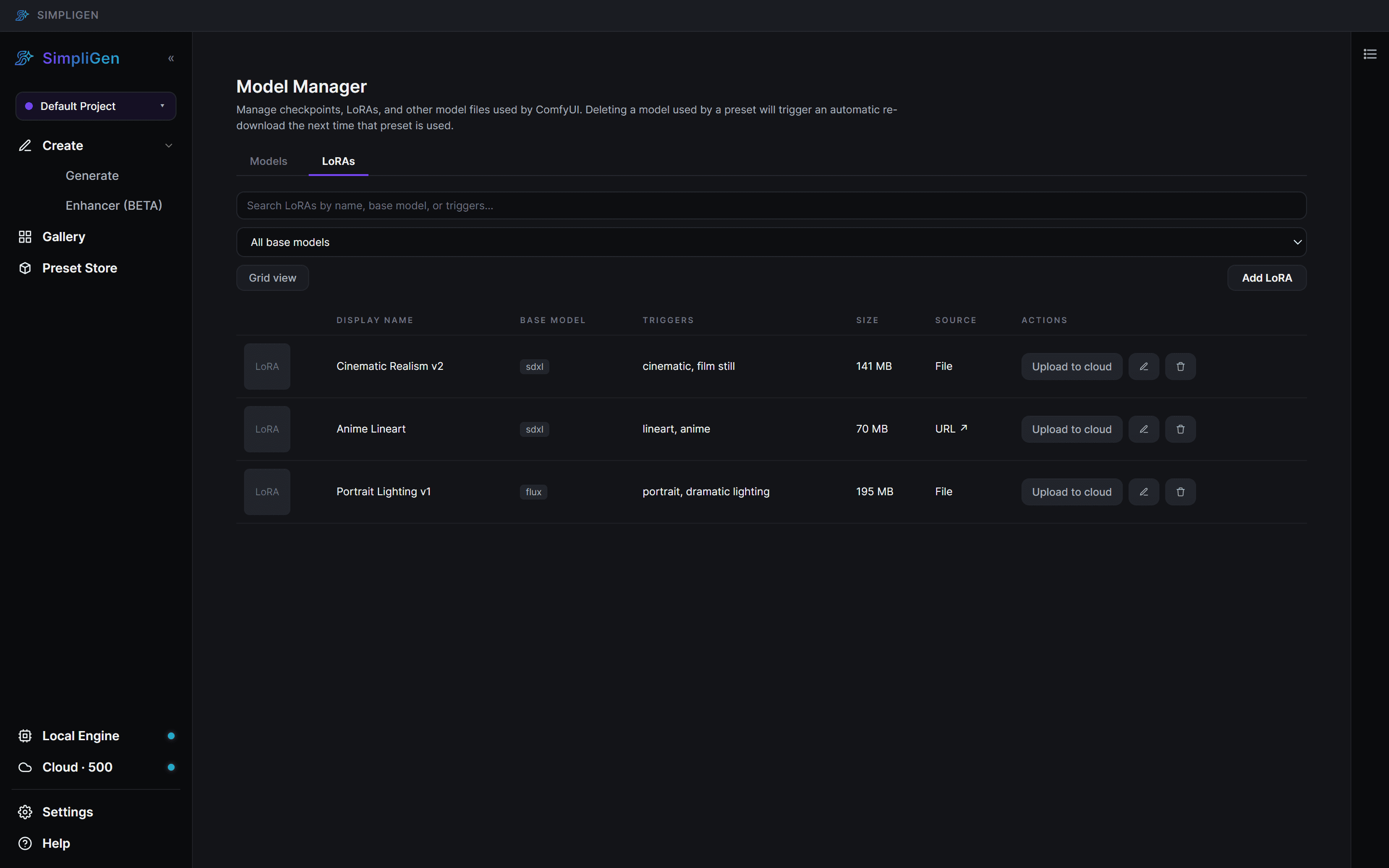
Click Local Engine on the bottom system strip of the left rail to open the engine popover, then click "Model Manager". Inside the Model Manager, switch to the LoRAs tab.
2. Add a LoRA
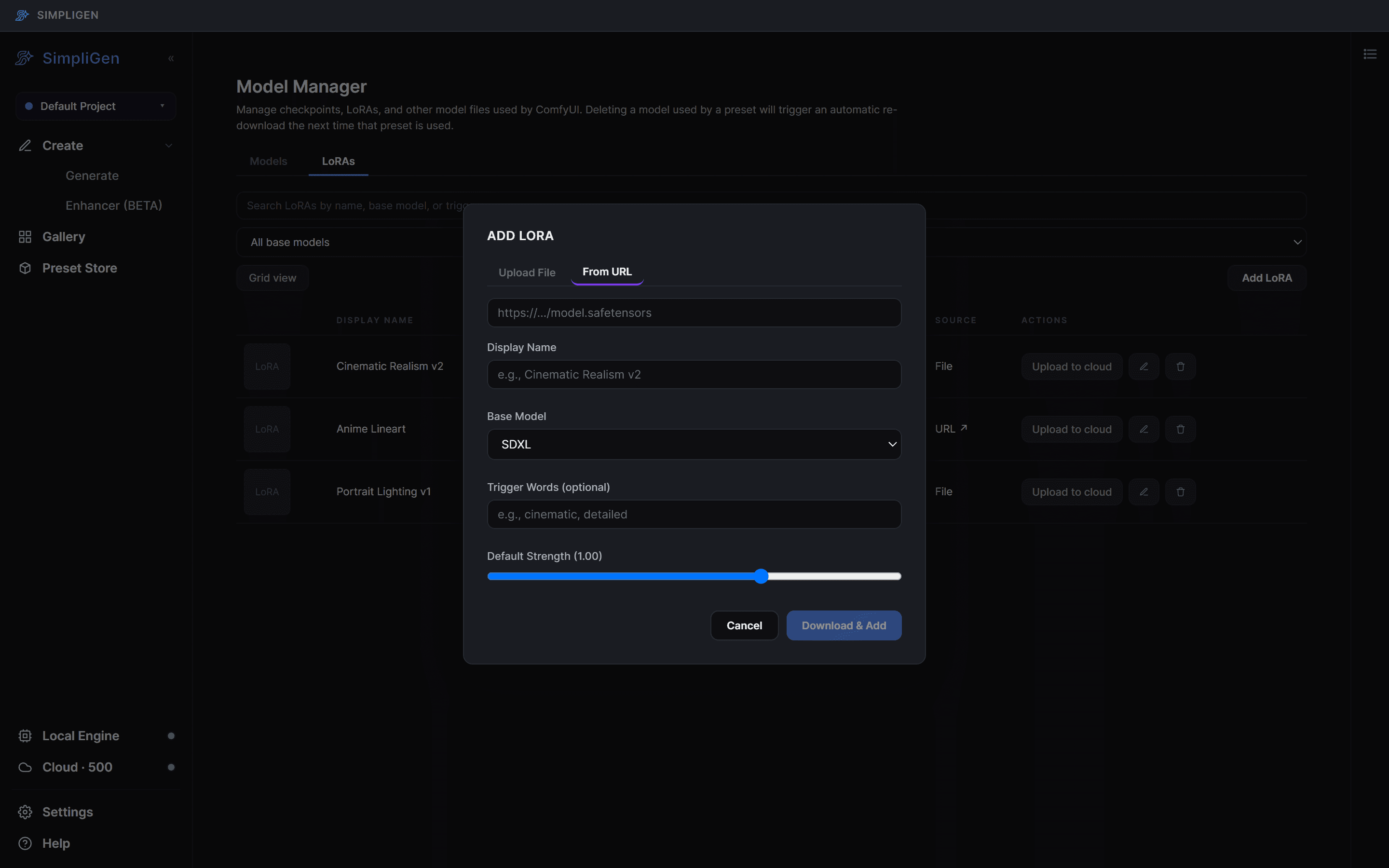
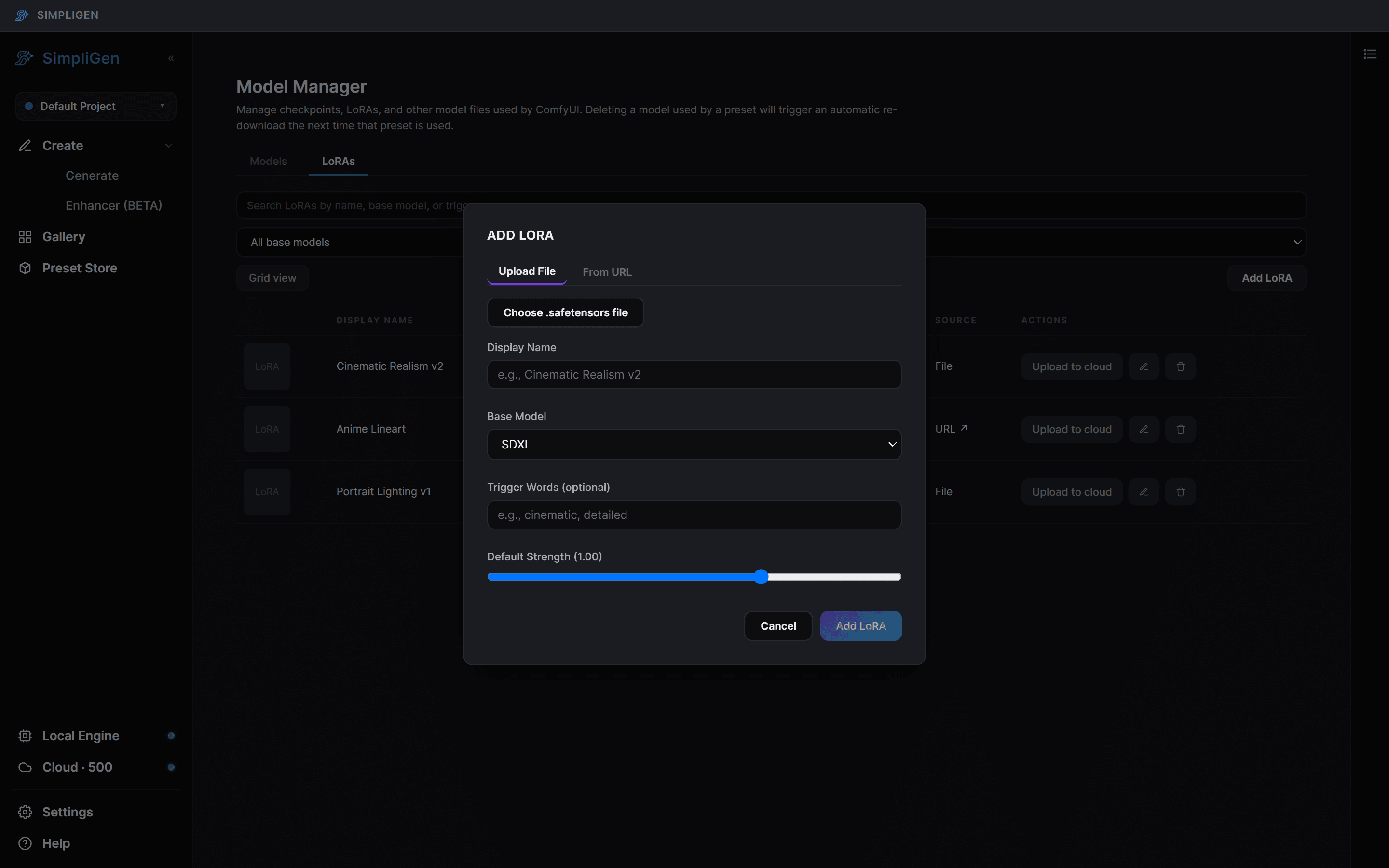
Click + Add LoRA. You'll see two tabs:
- From URL: paste a direct link to a
.safetensorsfile from HuggingFace or CivitAI. SimpliGen downloads it for you. - Upload File: pick a
.safetensorsfile you already have on your computer.
3. Fill in the details
You'll be asked for a few things:
- Display Name: what you'll see in the picker later. Pick something you'll recognize, like Cinematic Realism v2.
- Base Model: the model architecture this LoRA was trained for (SDXL, FLUX, Wan 2.2, etc.). This matters. A LoRA trained for SDXL won't work on FLUX, and SimpliGen will warn you if you try to use a mismatched LoRA.
- Trigger Words (optional): comma-separated words that activate the LoRA's effect. They get added to your prompt automatically. Check the LoRA's page on HuggingFace/CivitAI for these.
- Default Strength: how strongly the LoRA influences the result.
1.0is the standard starting point;0.7is gentler.
Hit Save (or Download & Add if you used the URL tab) and SimpliGen adds it to your library.
4. Use it in a generation
Open the prompt builder and pick a preset that matches the LoRA's base model. Scroll down to the LoRAs (optional) section. Click + Add LoRA, pick your LoRA from the list, and tweak the strength if you want. You can stack several LoRAs together.
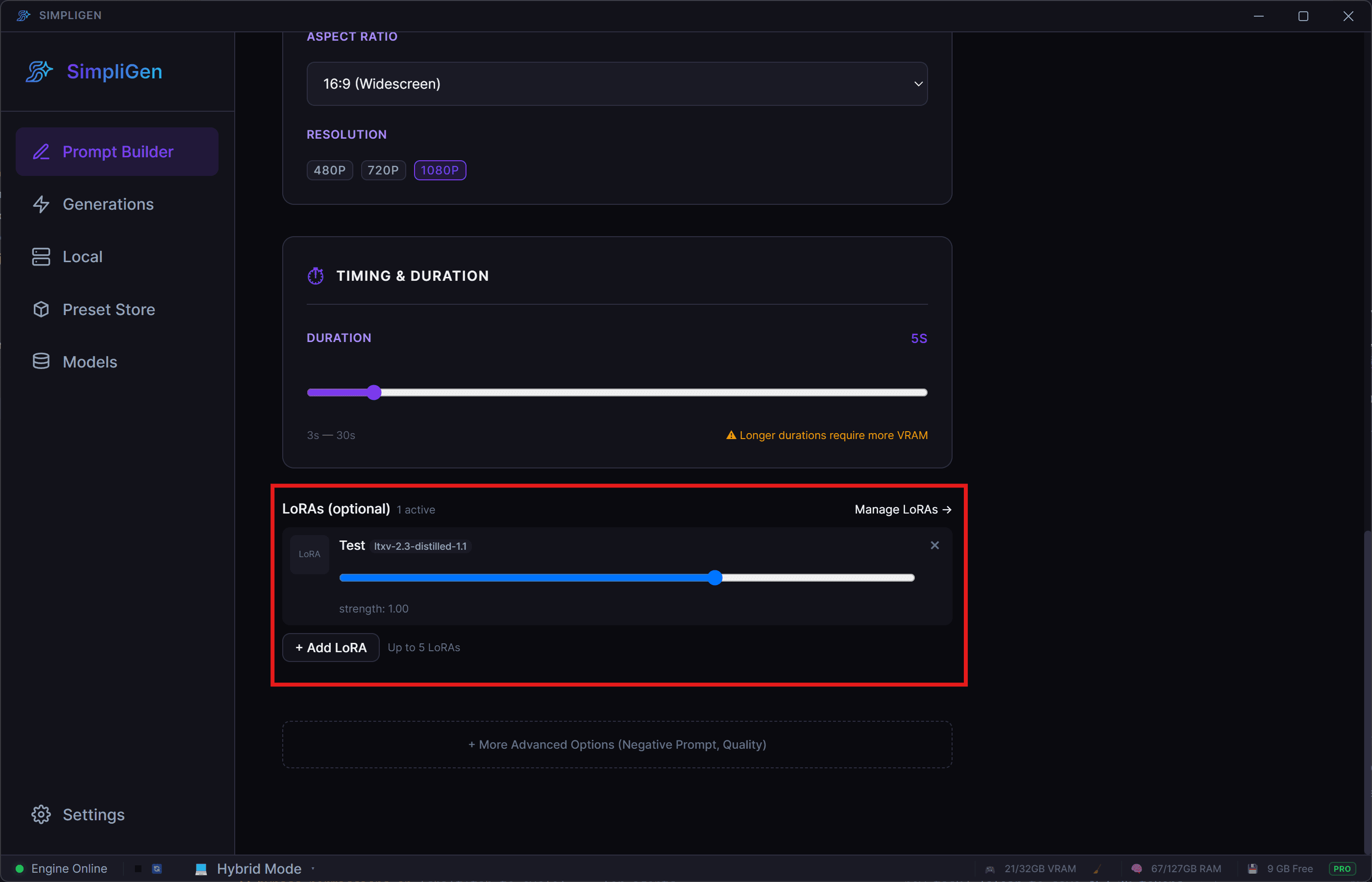
Generate as normal. The LoRA's trigger words (if you set any) get mixed into the prompt automatically.
Tips that save pain
Match base models
A LoRA's Base Model has to match the preset's model. SimpliGen shows a yellow "Built for X" warning when the LoRA and preset don't line up. You can override it ("Use anyway"), but the result will usually be poor.
Where to put trigger words
Trigger words go in your prompt, not in the Display Name field. If you set them when adding the LoRA, SimpliGen handles this for you automatically.
Strength sweet spot
Most LoRAs land between 0.7 and 1.0. Push higher for a stronger effect, lower if the LoRA is overpowering your prompt.
Troubleshooting
"My LoRA doesn't show up in the picker." Check the Base Model filter at the top of the LoRA tab; it might be filtering yours out. Also try searching by name in the search box.
"The result looks the same as without the LoRA."
Two usual causes: strength is too low (try 1.0), or the trigger words
aren't in your prompt. Open the LoRA's page on HuggingFace or CivitAI
and check what trigger words it expects.
"Generation fails right after I add a LoRA." The file is probably corrupted, or it's for a different model architecture than what you set. Try re-downloading, or try a different LoRA to confirm.
Still stuck? Hop into our Discord. We help out there daily.