Increase your Windows page file
Fix crashes, freezes and reboots caused by Windows running out of committed memory during heavy video generations.
Some video presets need far more memory than they need VRAM. When Windows runs out of room to promise that memory, it does not show a tidy error: the generation dies part-way through, and sometimes the whole PC freezes or restarts.
Raising the Windows page file fixes it. It takes two minutes and a reboot.
Who needs this
Mostly people running the heavier local video presets, LTX 2.3 in particular, on a machine with 32 GB of RAM or less. Cloud generations are unaffected: they run on our GPUs, not your PC.
Is this your problem?
It probably is if you recognise two or more of these:
- A local video generation gets most of the way through, then dies near the final stage.
- Your PC freezes, hard-restarts, or shows a bluescreen during generation.
- You see an error mentioning "The paging file is too small for this operation to complete".
- Other programs fail to open while SimpliGen is generating.
- Lowering the VRAM profile or turning on Low Memory Mode did not help, or made it worse.
That last one is the giveaway. Those options push more of the model into ordinary system memory, which is exactly the thing that is running out. If lowering your VRAM settings made things worse rather than better, this page is almost certainly your fix.
What is actually happening
Windows tracks a commit limit: the total memory it is willing to promise to all running programs. That limit is your RAM plus your page file, not just your RAM.
A big video preset loads several large models at once and shuffles them between the GPU and system memory as it works. Each shuffle asks Windows for a fresh promise of memory. On a default setup the page file is modest and managed automatically, so the commit limit is reached, Windows refuses the next request, and whatever asked for it crashes. Sometimes that is SimpliGen. Sometimes it is Windows itself, which is why the whole machine can go down.
Giving Windows a bigger page file raises the ceiling. It does not slow anything down in normal use.
Before you start
You need to be signed in as an administrator. Windows will let you look at these settings either way, but it will not let you change them from a standard account.
You need free disk space equal to the maximum size you set. The settings below ask for up to 64 GB, so check the drive has that much free first. If it does not, use a drive that does, or set smaller numbers (see If you are short on disk space).
Put the page file on your fastest drive with room, normally the SSD Windows is installed on.
Steps
Open the Performance settings
Press Windows + R, type this, and press Enter:
sysdm.cpl ,3That opens System Properties on the Advanced tab.
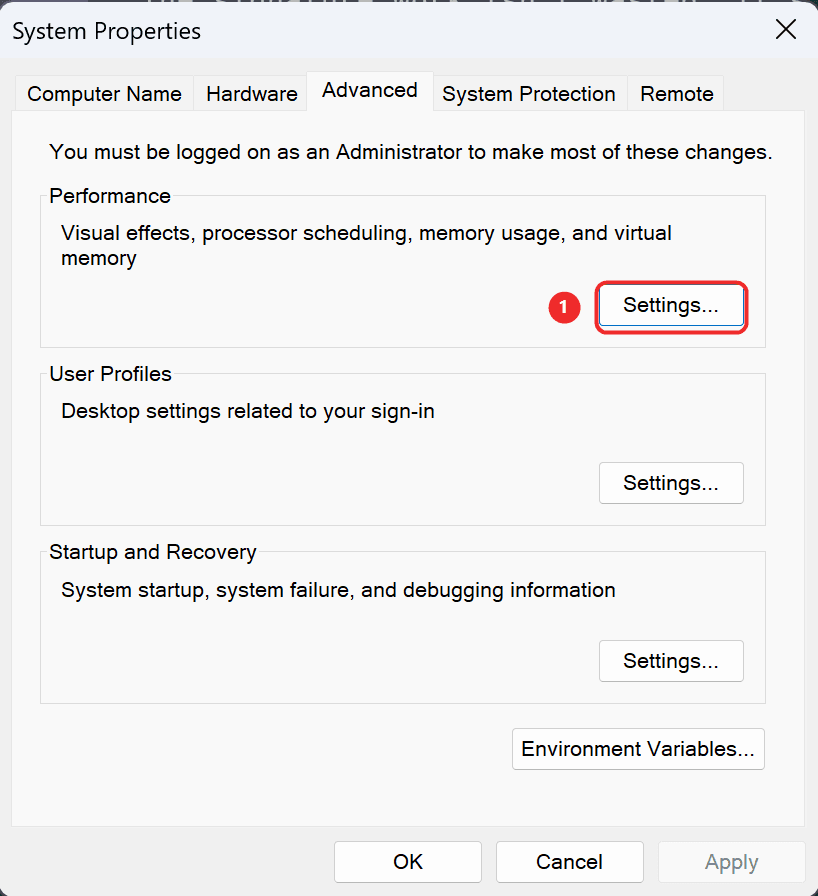
Under Performance, click Settings... It is the first of the three Settings buttons, in the box that mentions "virtual memory".
Go to Virtual memory
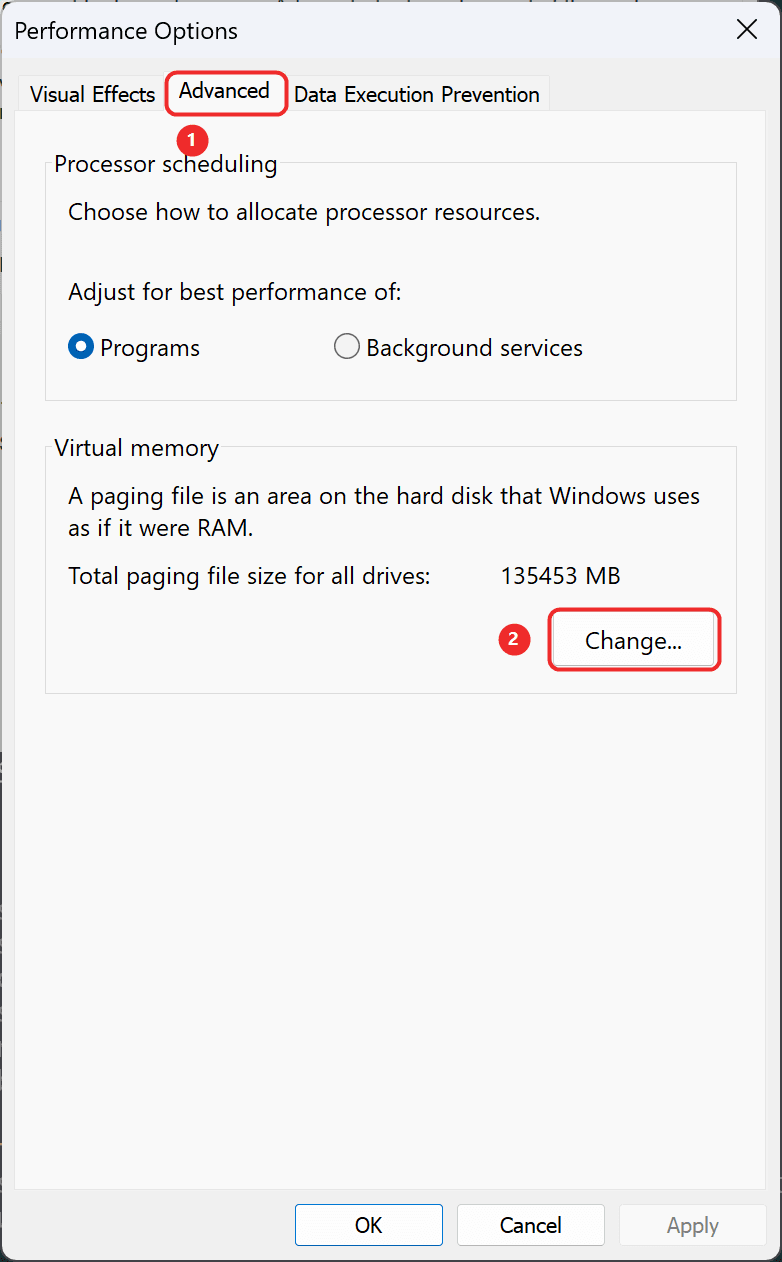
In the Performance Options window:
- Open the Advanced tab.
- Under Virtual memory, click Change...
Turn off automatic management
At the top of the Virtual Memory window, untick "Automatically manage paging file size for all drives".
The options below it become editable.
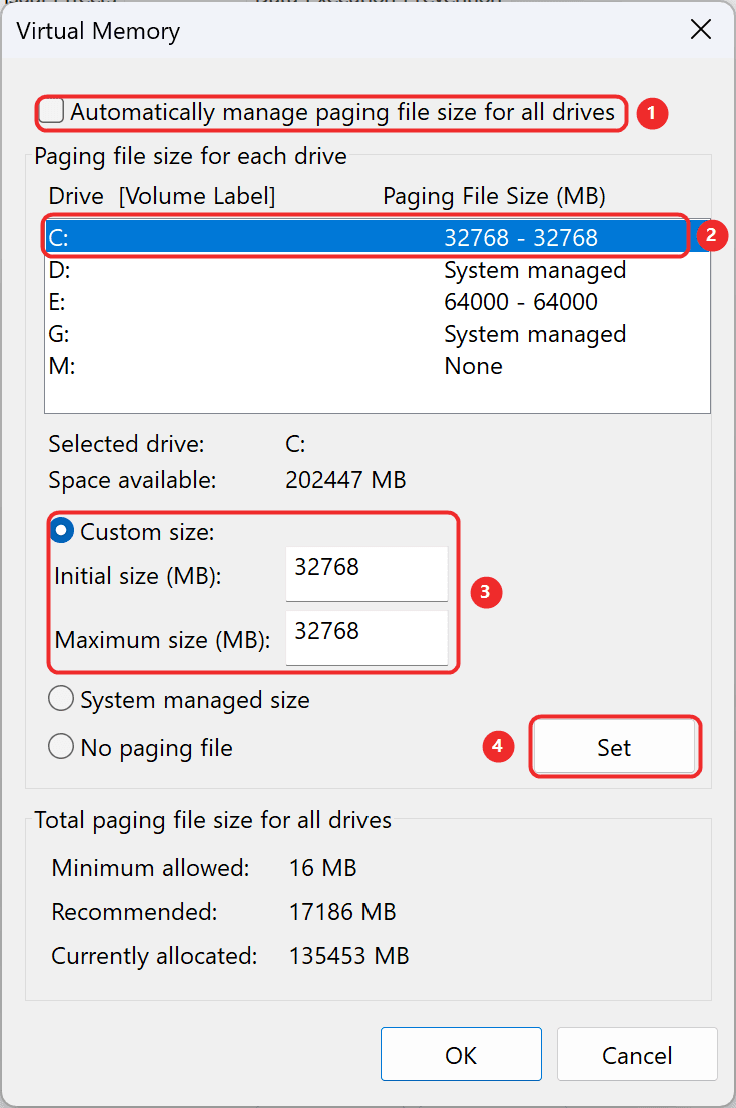
The four marked areas are the whole job: 1 untick, 2 pick the drive, 3 enter the sizes, 4 click Set.
Set a custom size
Select the drive you want to use, normally C:, then choose Custom size.
Enter these values, in megabytes:
| Field | Value |
|---|---|
| Initial size (MB) | 32768 |
| Maximum size (MB) | 65536 |
That is 32 GB initial and 64 GB maximum. Use those numbers whether you have 16 GB or 32 GB of RAM: the whole point is to cover what your RAM cannot.
Click Set, then OK.
Click Set before OK
If you click OK without clicking Set first, Windows silently discards the values and nothing changes. This is the single most common reason people report that this did not work.
Restart
Click OK on the remaining windows and restart your PC. The new page file is not fully in effect until you do.
Check it worked
After restarting, press Windows + R, type sysdm.cpl ,3, and take the same route: Settings... then Advanced. The line under Virtual memory should now read roughly "Total paging file size for all drives: 32768 MB".
Then run the generation that was failing.
If you are short on disk space
Set the largest you can spare rather than skipping it. Initial 16384 and maximum 32768 (16 GB and 32 GB) still helps a great deal, and is much better than the default.
You can also put the page file on a different drive: select that drive in the same window, set the custom size there, and set the original drive to No paging file. Keep it on an SSD if you have one; a page file on a mechanical hard drive will be slow.
If the drive is full of models, the Model Manager will usually free more than the page file needs. Models are not deleted when you uninstall a preset: see Freeing up disk space.
If it still crashes
- Try the LTX 2.3 1.1 (FP8) pack instead. It avoids the memory-heavy path that the GGUF version uses, so it needs less committed memory.
- Close browsers and other heavy apps before generating. Chrome with many tabs can hold several gigabytes of committed memory on its own.
- Use cloud generation for the heavy presets. It runs on our GPUs, so your machine's memory stops being the limit.
- Still stuck? See Getting help and include your diagnostics export, which records the exact crash code.