Freeing up disk space
Uninstalling a preset does not delete its models, on purpose. The Model Manager shows every model on your disk and which presets still need it.
Uninstalling a preset never deletes its models. That is deliberate, not a bug. Presets share model files, so removing the weights one preset used would break every other preset that loads the same file.
To get the space back, use the Model Manager. It lists every model file on your disk, tells you which installed presets still need each one, and deletes the ones you pick.
Reclaim the space
Click Local Engine on the bottom system strip of the left rail. The popover that opens shows how much free space the drive has.
Click Model Manager.
Tick the files you no longer want, then click the button in the footer. It tells you how much you are about to reclaim before you confirm.
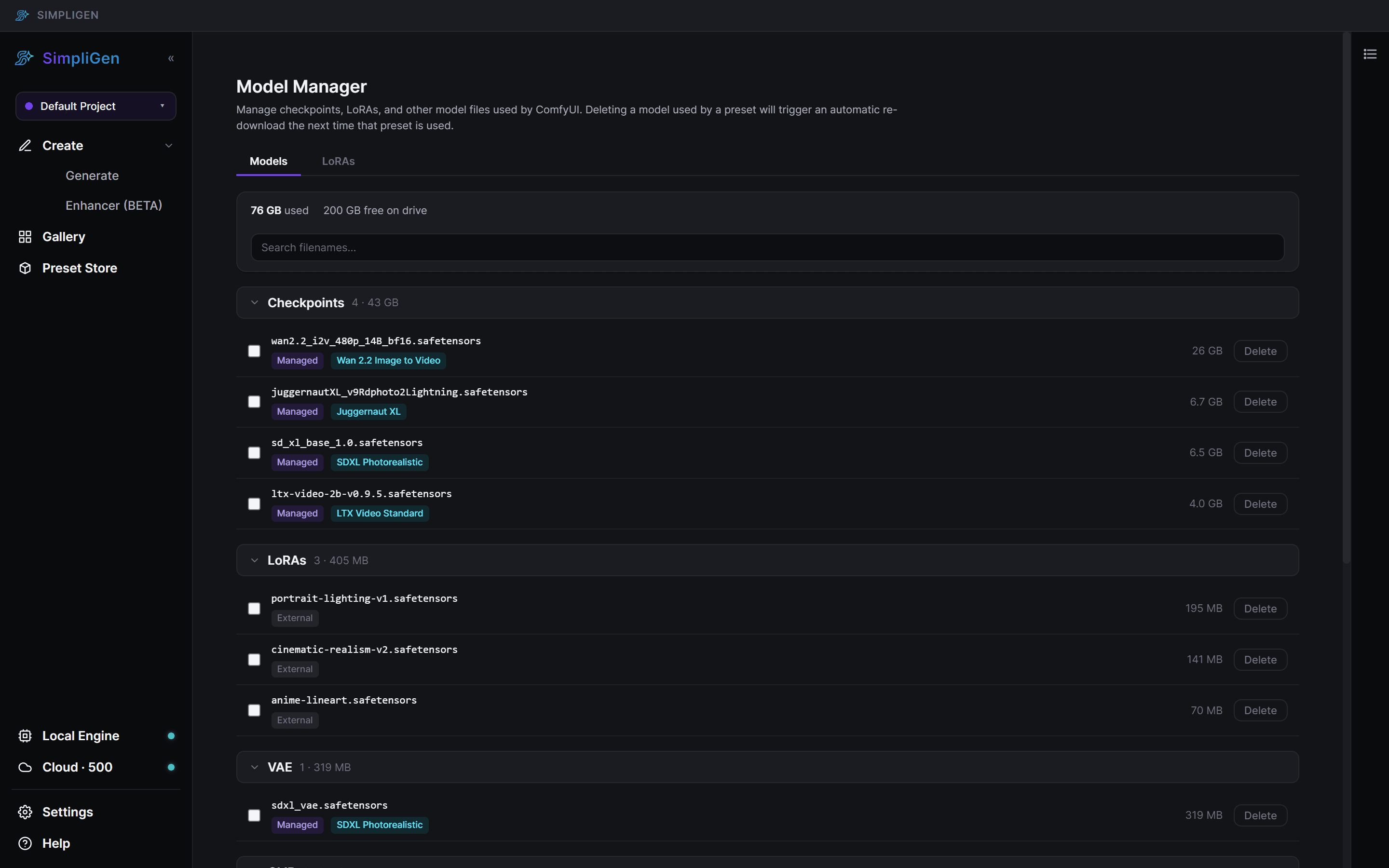
The line at the top is the total: how much the model files are using, and how much is still free on the drive. Files are grouped by type (checkpoints, LoRAs, VAEs and so on) with a subtotal per group, and the search box filters by filename.
What is safe to delete
Every row carries a size and one or two badges, and that is the whole answer:
- Managed, followed by one or more preset names: an installed preset declares this file. The badges name every preset that uses it, so a file three presets share is obvious before you touch it.
- External, with no preset name: nothing you have installed needs this file. It is either a model left behind by a pack you uninstalled, or something you added yourself.
- Not in a model folder: the file is sitting at the top of your models folder, where nothing can load it. Move it into a subfolder such as
checkpoints/orloras/, or delete it.
So the models an uninstall left behind are exactly the rows that turned External. Uninstalling a pack removes its presets, so its model files stop being claimed by anything and lose their preset badges.
Deleting a model a preset still uses is safe
You do not have to be careful here. If you delete a file a preset needs, SimpliGen downloads it again the next time you use that preset. The confirmation dialog lists Used by: for each file first, so you always see what you would be taking away.
You do not need a script for this
A few people have pointed an AI agent at their models folder and asked it to work out which files no preset needs any more. The Model Manager already does that comparison: it reads every installed pack, indexes every model filename those packs declare, and marks everything it cannot account for as External. Same answer, in a few clicks, with the preset names shown next to each file.
What actually takes the space
Models, almost entirely. A single video model can be 10 to 30 GB, and a preset often needs several files. Install a handful of video packs and a few hundred gigabytes is an ordinary result, which is why the Model Manager leads with the number.
If the drive is the wrong one, you can set where models are stored before installing big presets. See System requirements for the disk guidance.