Installing presets from the Preset Store
Browse and install new preset packs, and keep them up to date.
The Preset Store is SimpliGen's catalog of preset packs. Open it from Preset Store in the left rail.
Browsing and installing
- Open the Preset Store.
- Browse the available packs. Each pack bundles one or more presets for a particular model or style.
- Install a pack to add its presets to your prompt builder.
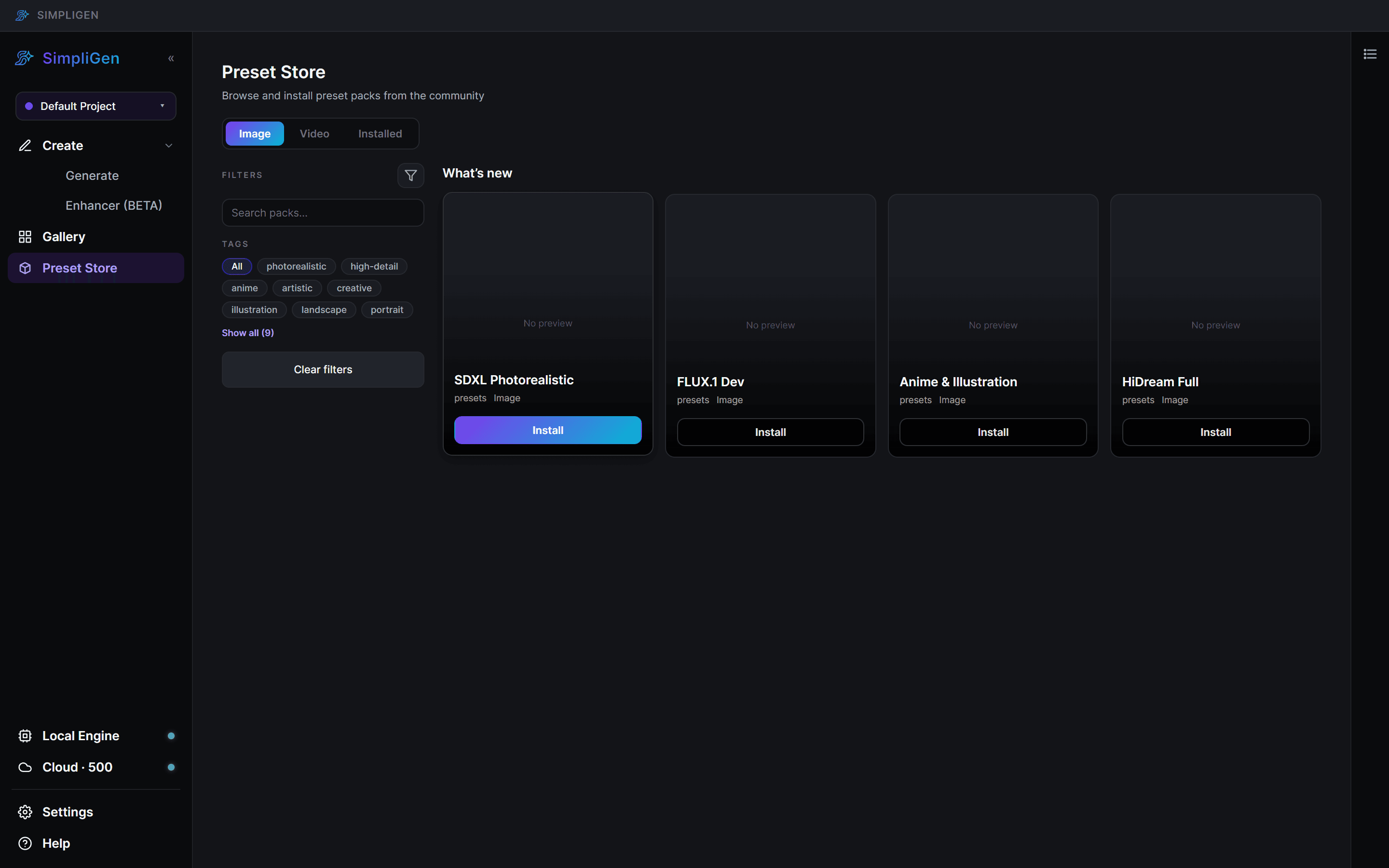
A pack's models are not all downloaded at install time. The actual model files download the first time you generate locally with one of its presets, or run instantly in the cloud where the preset supports it.
Keeping packs up to date
When a pack has a newer version available, SimpliGen flags it. You can update a single pack, or use Update all to bring every outdated pack current in one click. Updating gets you the latest presets, fixes, and cloud improvements.
Updating a pack is what makes new or fixed presets appear. If a preset looks out of date or a fix has not shown up, update the pack.
Cloud and packs
Some presets are cloud-enabled. After a pack updates, its cloud options become available automatically once the catalog refreshes. If a preset says it needs an update to use the cloud, install the latest version from the Preset Store.
To manage what is already installed, see The Model Manager.