The Model Manager
See and manage the models and LoRAs installed on your PC.
The Model Manager is where you see everything installed locally: the model files that presets use, and the LoRAs you have added. To open it, click Local Engine on the bottom system strip of the left rail to open the engine popover, then click "Model Manager".
Models tab
The Models tab lists the model files on your machine (checkpoints, LoRAs, VAEs, and more), grouped by type. SimpliGen finds these by scanning the local engine's model folders, so anything a preset has downloaded shows up here.
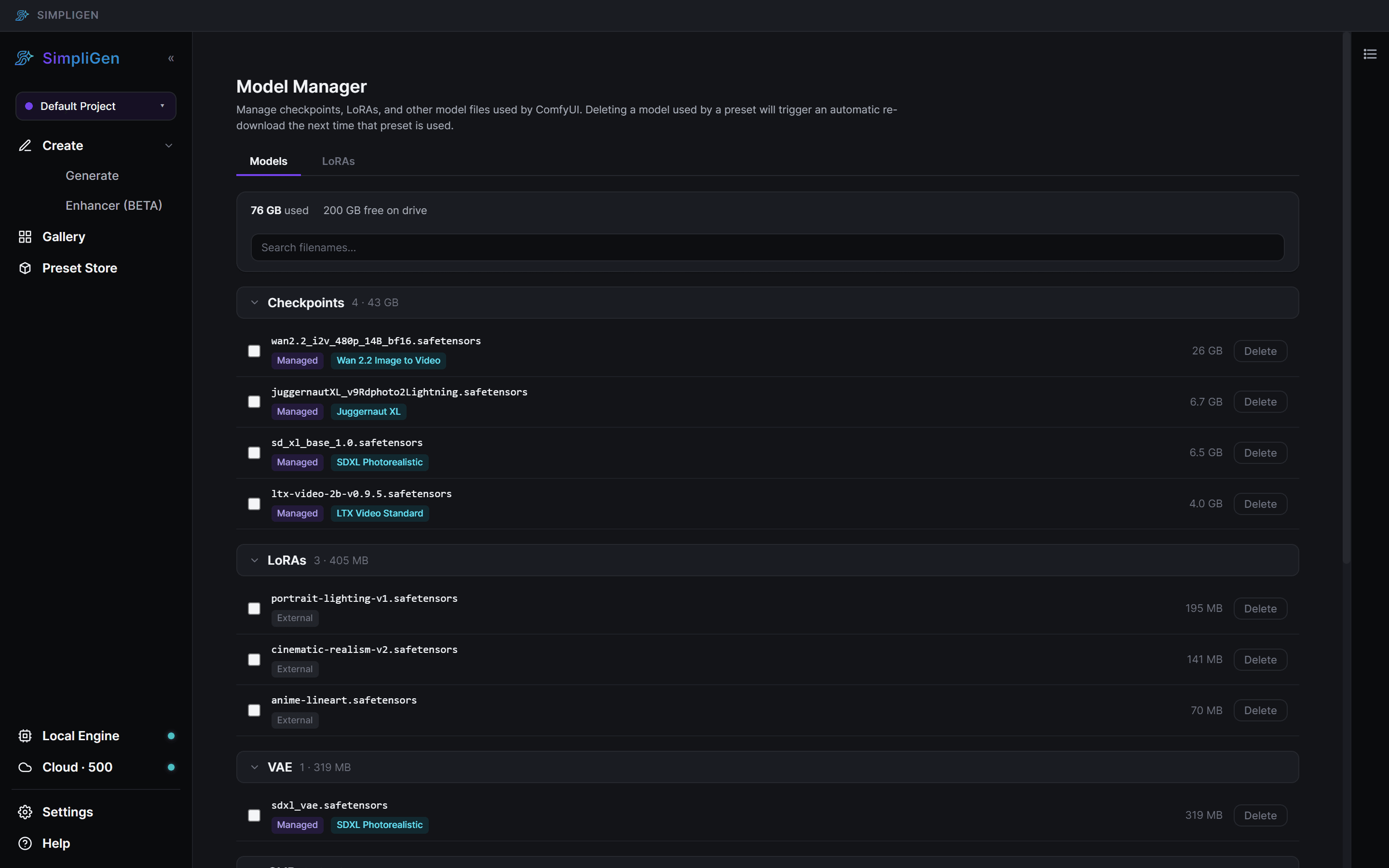
From here you can review what is installed and remove files you no longer need.
Removing a model that a preset relies on is safe. The next time you use that preset, SimpliGen downloads the model again automatically.
This is a useful place to reclaim disk space, since image and video models can be large.
LoRAs tab
The LoRAs tab manages the LoRAs you have added yourself. Each row shows the display name, the base model it targets, and its trigger words. You can add, edit, and remove LoRAs here.
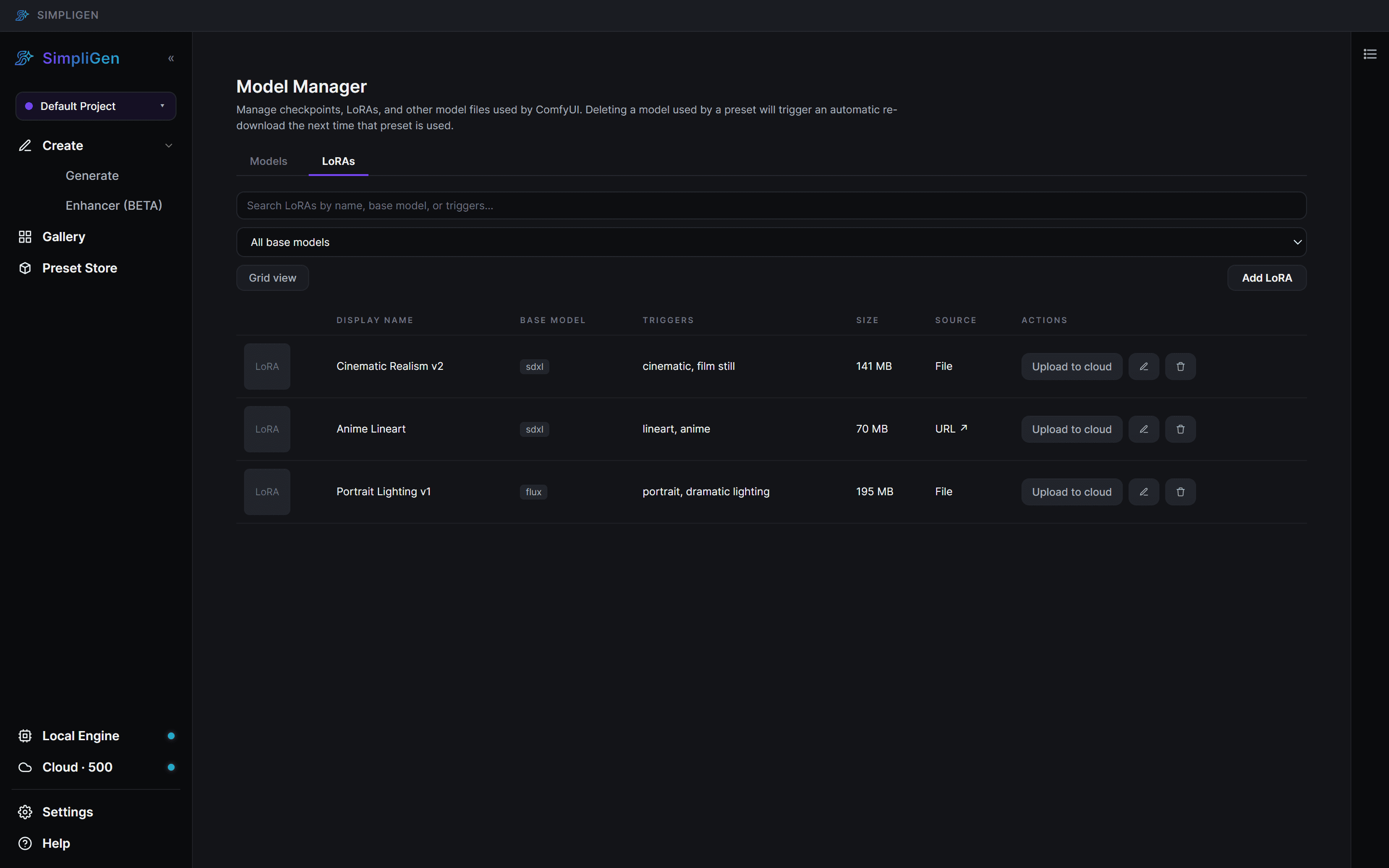
For the full walkthrough, see Using LoRAs.
Where models come from
- Presets download their required models the first time you generate locally with them.
- The Preset Store lets you install new preset packs. See Installing presets.
- You can add LoRAs manually on the LoRAs tab.
If a model download fails or a preset will not install, see Engine install problems.