Your first generation
Make your first image with the 3-step prompt builder.
Every generation in SimpliGen goes through the same 3-step prompt builder. This walkthrough takes you through all three steps to make your first image.
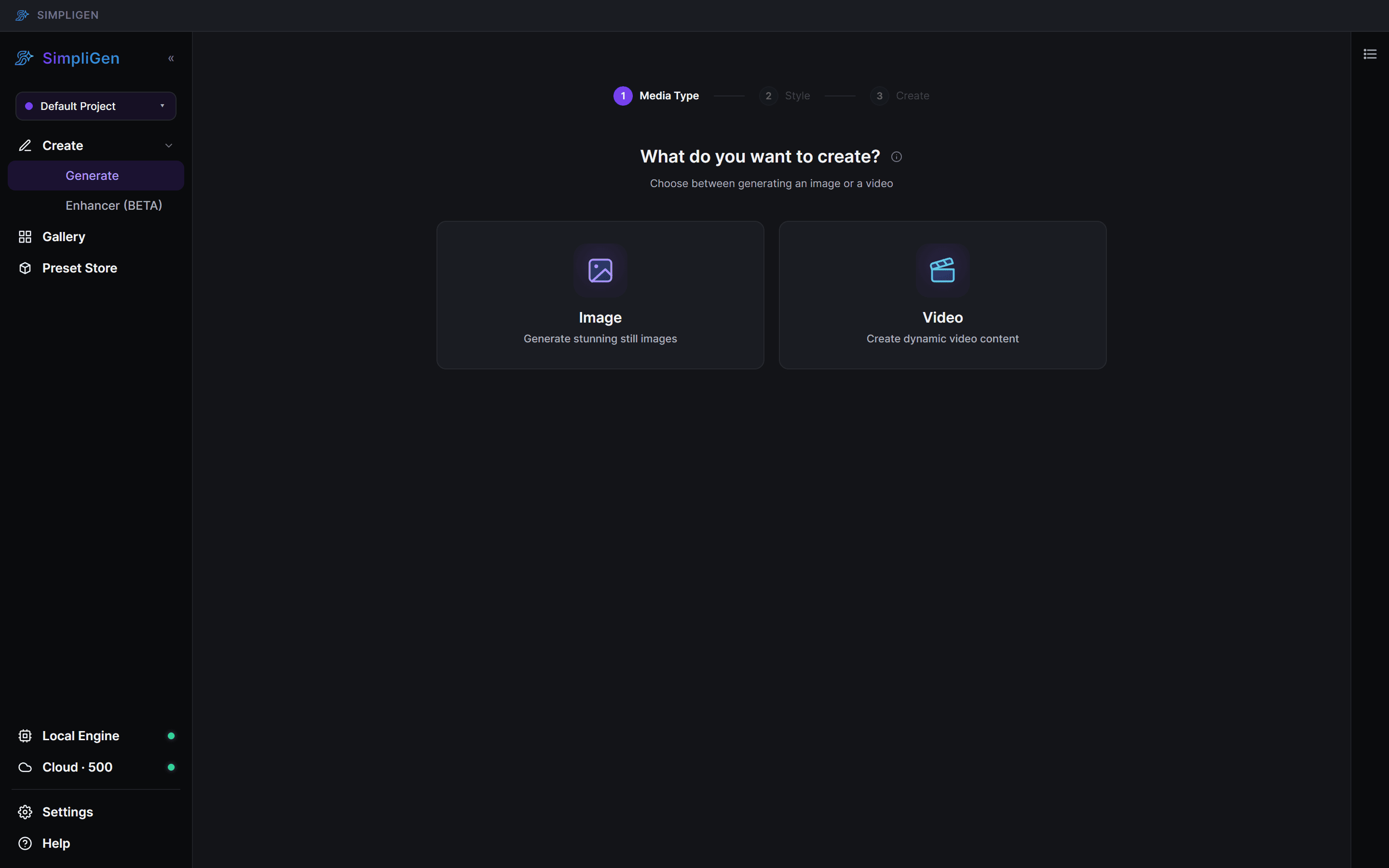
Choose a media type
When SimpliGen opens, you land on the prompt builder. The first step asks what you want to create. Click Image to make a still image, or Video to make a clip. For your first generation, choose Image.
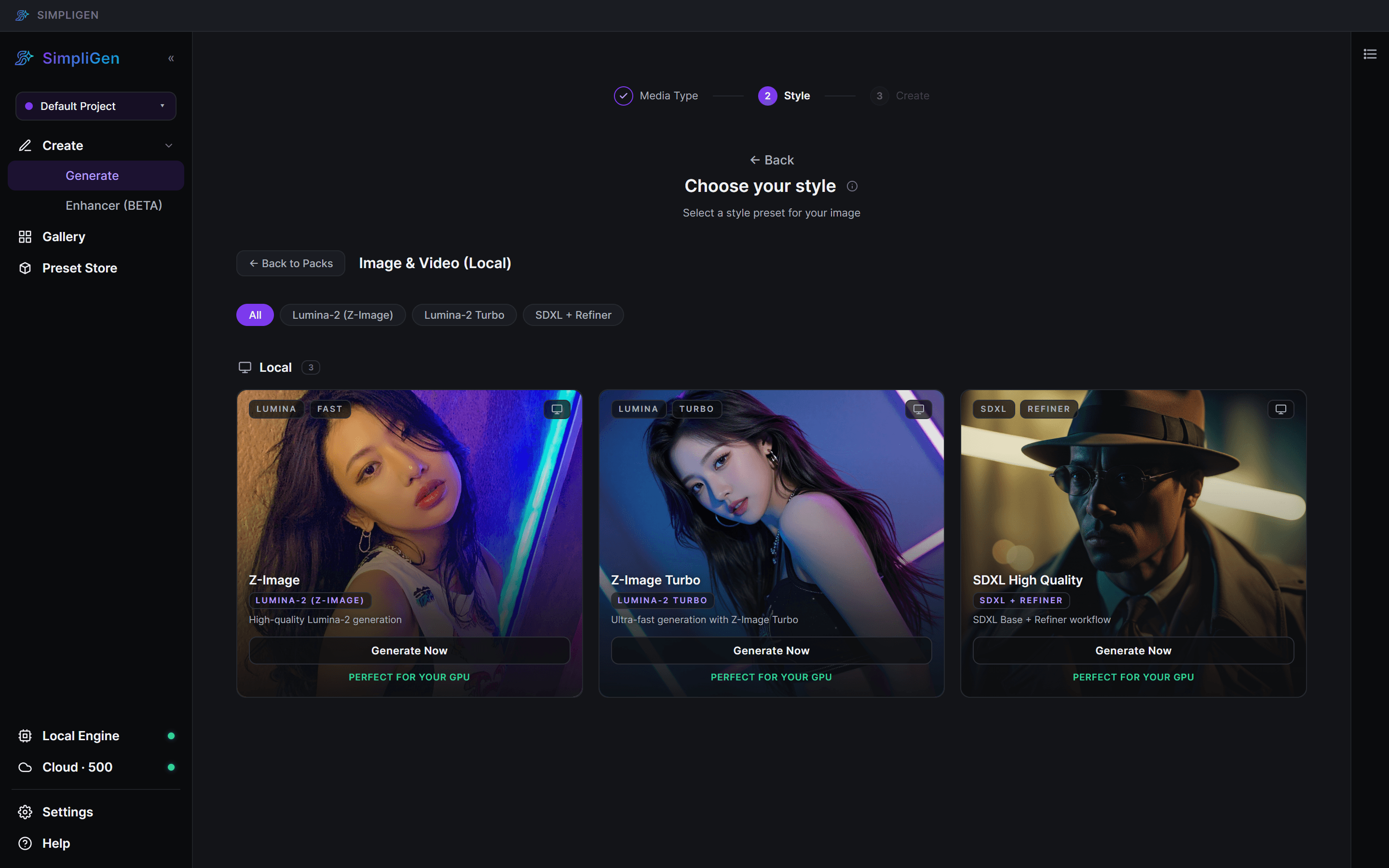
Pick a style
Next, choose a preset. A preset is a ready-made recipe (a model plus tuned settings) for a particular look or job. Presets are grouped into packs, so open a pack to see the presets inside it, then click the preset you want.
- Cloud-enabled presets show a cloud option and run on our GPUs using credits.
- Local presets download their models the first time you generate on your own GPU.
If you are not sure, start with one of the core presets. You can always go back and change it.
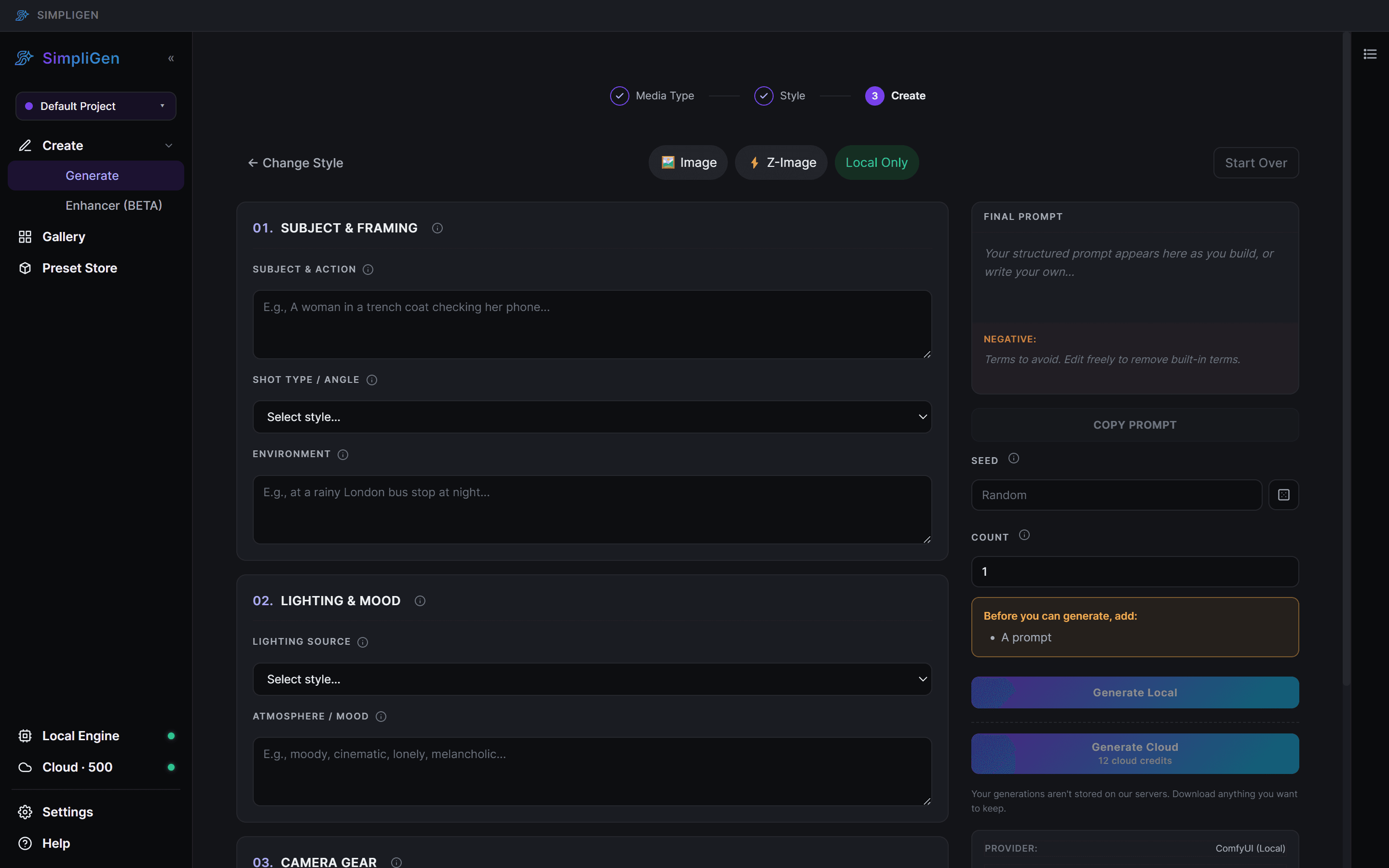
Describe and generate
The final step is where you write your prompt and generate. Type what you want in the prompt box, adjust any settings you like, then click the generate button at the bottom.
Most settings have a small i icon next to them: hover or tap it for a plain-language explanation.
Cloud vs local
- Cloud charges credits per generation and needs no setup. See Cloud & Credits.
- Local runs on your machine for free after the one-time model download.
If a preset supports both, click Generate Cloud (with a credit cost sub-label) to run on our GPUs, or Prepare Local / Generate Local to run on your own machine. API-only presets show a single GENERATE IMAGE button.
Where results go
When you generate, the job moves to the Queue drawer; open it by clicking the Queue button on the right rail. The drawer shows active, waiting, and failed jobs. Finished results land in Gallery on the left rail. If a generation seems stuck, see Out of memory / stuck generations.