The prompt builder
How SimpliGen's 3-step wizard turns a simple idea into a finished image or video.
Every generation in SimpliGen starts in the prompt builder, a 3-step wizard that keeps things simple while still giving you full control.
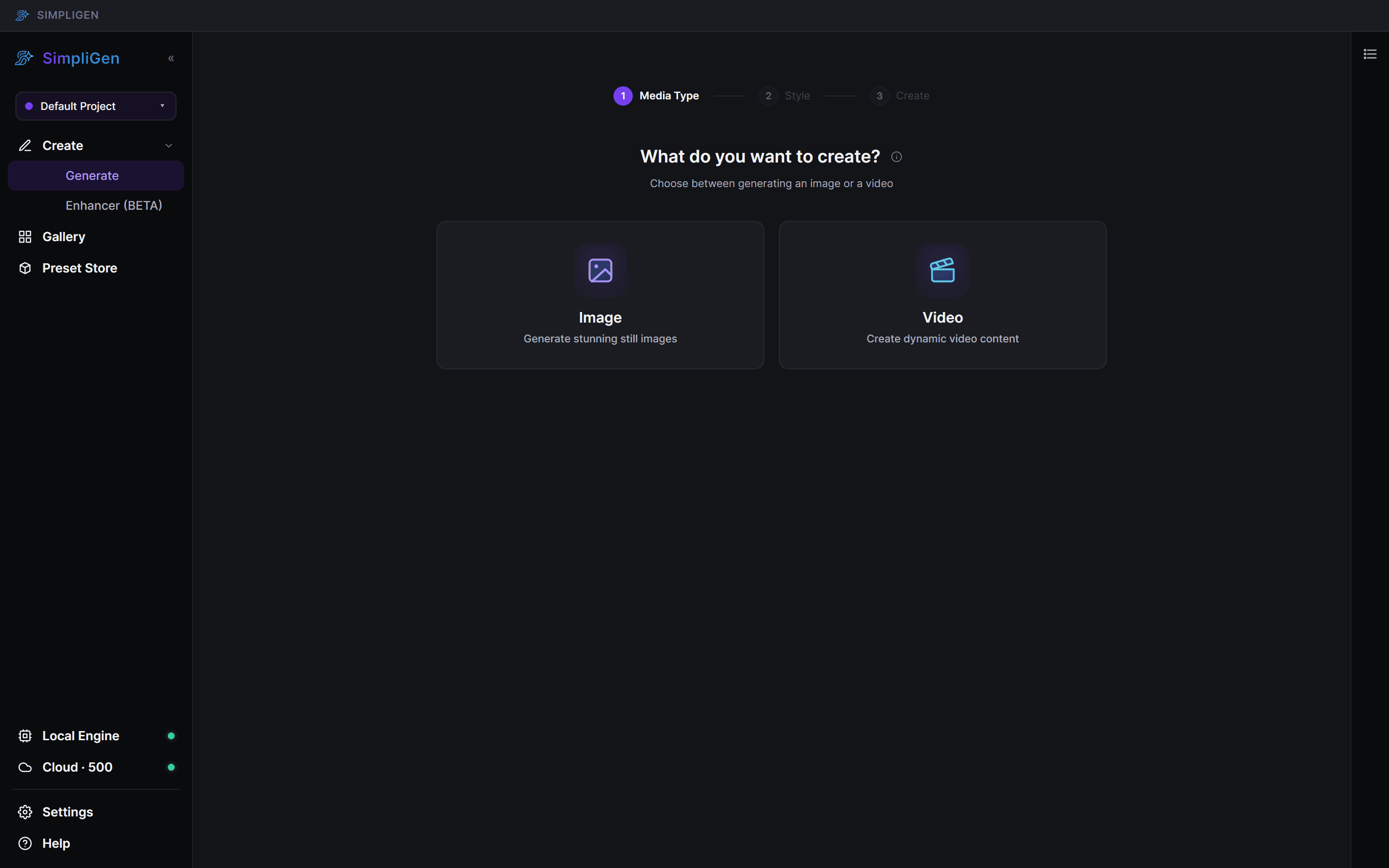
Step 1: Media type
Choose whether you want an Image or a Video. This decides which presets and settings you see next, since image and video models are different.
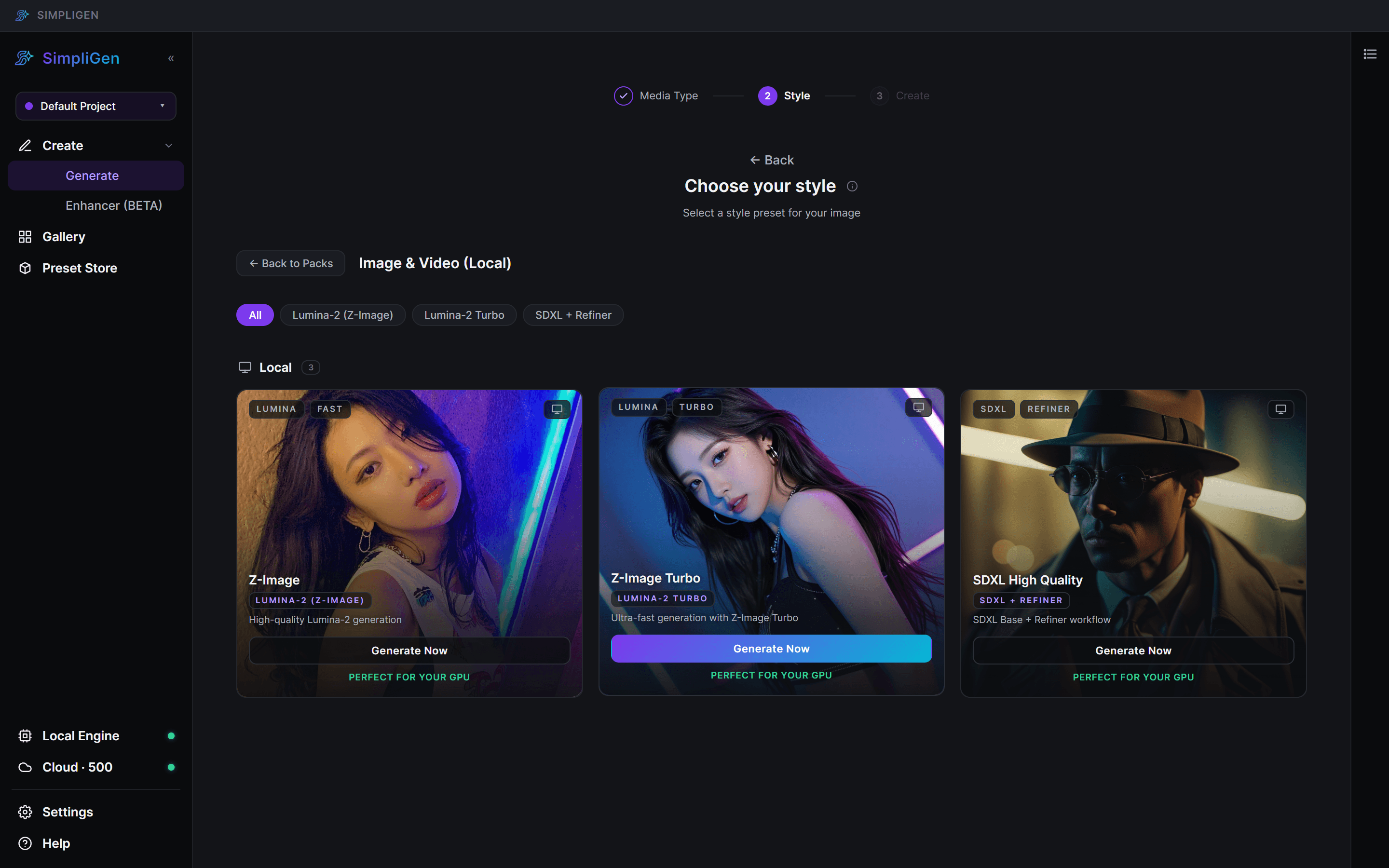
Step 2: Style
Pick a preset. A preset is a ready-made recipe (a model plus tuned settings) for a particular look or job, such as a photoreal image model, an anime style, or a video model. Presets live inside packs, so open a pack to see its presets, then click one.
- Presets that can run in the cloud show a cloud option.
- Presets that run on your own GPU download their models the first time you use them.
If you are not sure which to pick, start with one of the core presets. You can always come back and change it.
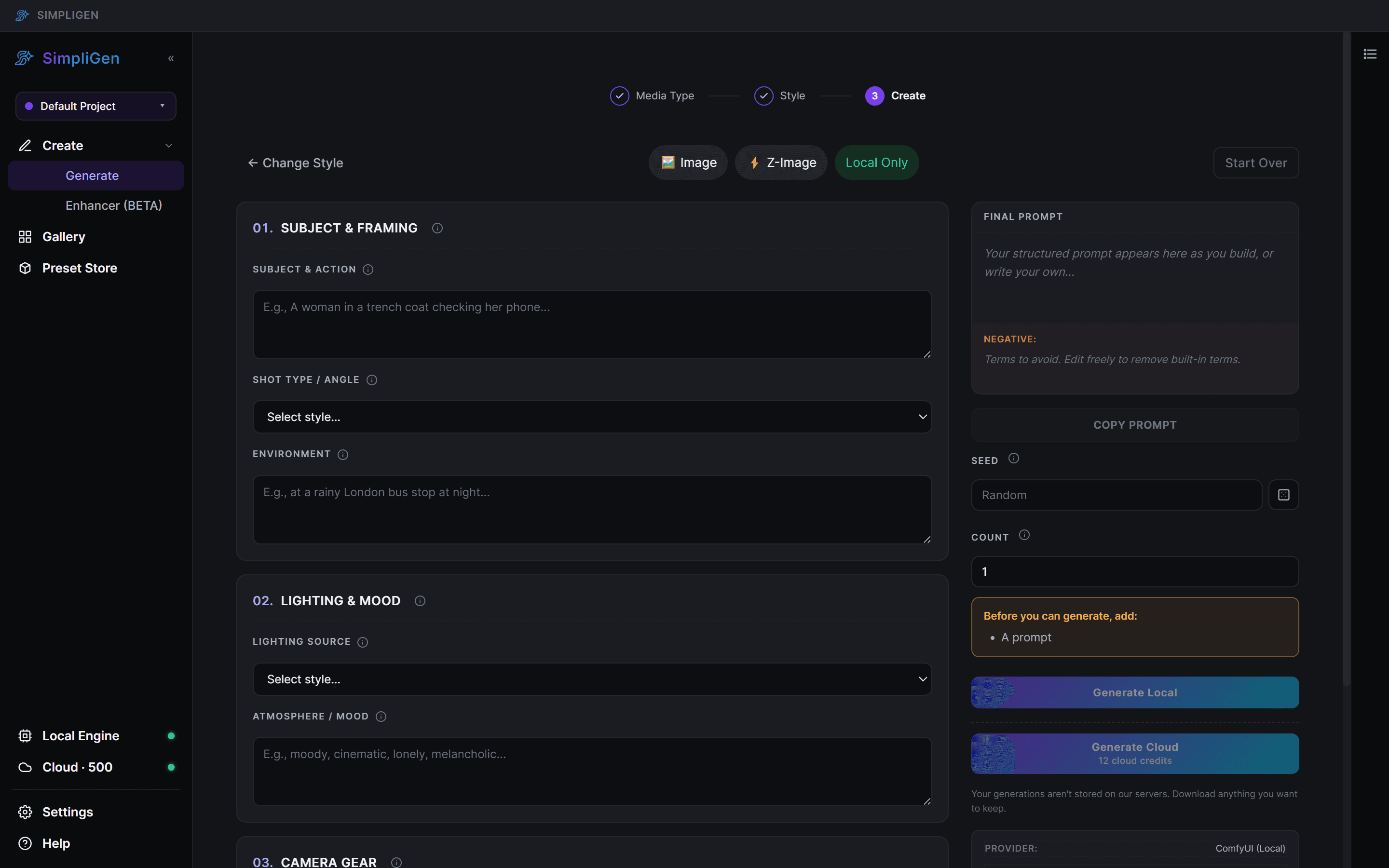
Step 3: Create
Describe what you want in the prompt box, adjust any settings you like, then generate.
Most settings have a small i icon next to them. Hover or tap it for a plain-language explanation of what that setting does.
From here you can:
- Set the resolution, aspect ratio and duration.
- Control seeds, batches and how many images you make at once.
- Open advanced controls for steps, guidance, and denoise.
- Add a negative prompt to steer the model away from things.
- Attach reference images for image-to-video and editing presets.
When you generate, the job moves to the Queue, and finished results land in your Gallery.
Writing a good prompt
- Be specific about subject, setting, lighting, and style.
- Lead with what matters most. Earlier words carry more weight.
- Keep it natural. You do not need to write in keywords.
- If a preset lists trigger words, include them so the style activates.