Making videos
Animate your character into a short clip that holds the face steady.
Characters do video too. You generate a starting frame of your character in a scene, then animate that frame into a short clip. The face stays steady the whole way through.
Make a video
From the character's dashboard, click Generate Video.
- Pick a motion model. This is the model that turns a still image into a moving clip.
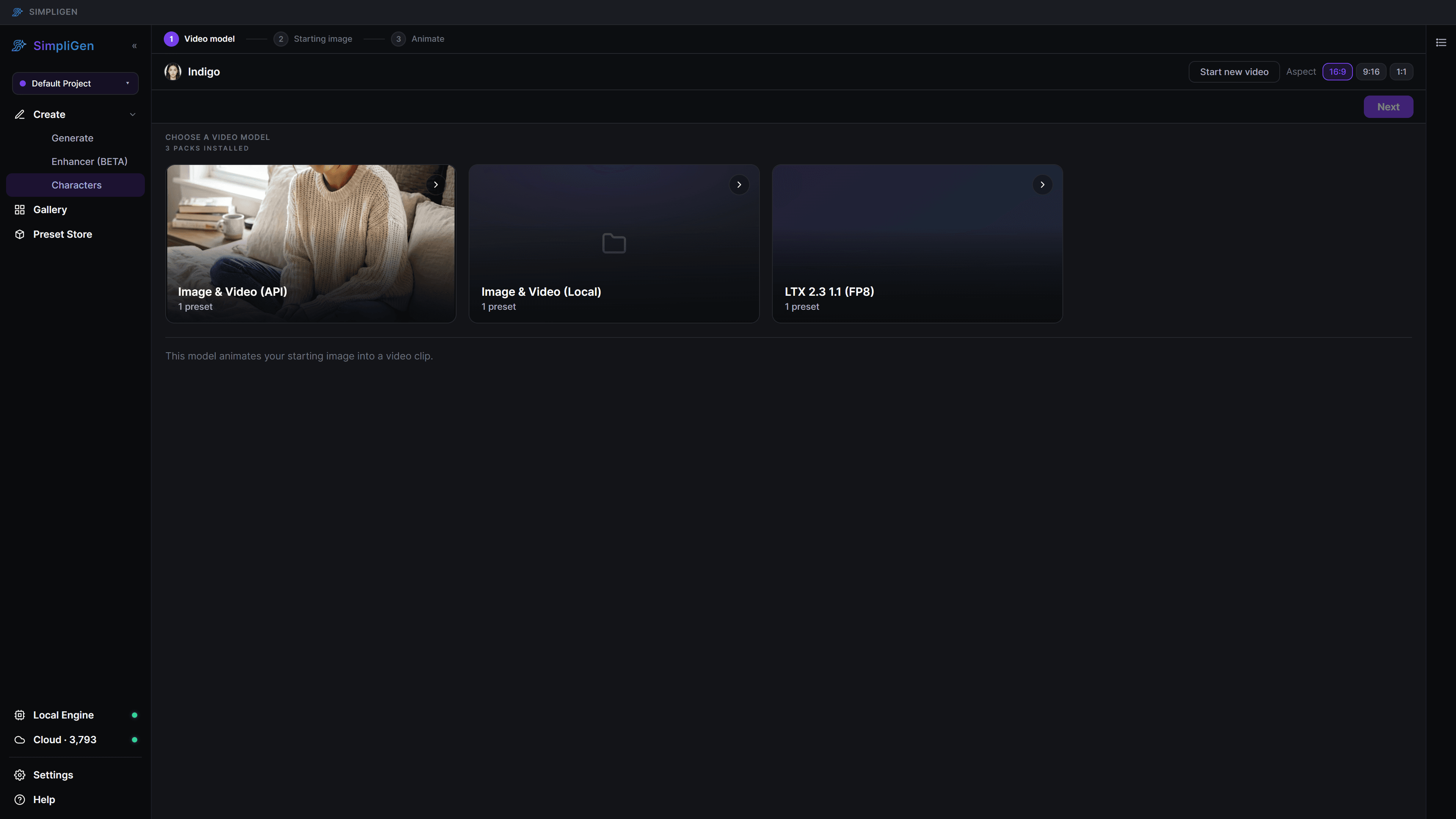
- Generate a starting frame. This works exactly like generating an image: choose an image model, describe the scene, set the aspect ratio, and generate. When the frames come back, pick the one you want to animate.
 3. Enhance the frame (recommended). Before you animate, sharpen the starting frame so the video has crisp detail. See Enhancing. The clip animates the frame you accept, so enhancing it first carries that quality into the video.
4. Describe the motion. Keep it simple, for example "waving at the camera" or "turning to look over her shoulder". Then generate.
3. Enhance the frame (recommended). Before you animate, sharpen the starting frame so the video has crisp detail. See Enhancing. The clip animates the frame you accept, so enhancing it first carries that quality into the video.
4. Describe the motion. Keep it simple, for example "waving at the camera" or "turning to look over her shoulder". Then generate.
SimpliGen animates the frame into a short clip, holding the character's face steady throughout.
Tips
- The starting frame defines the look. Get the frame right (and enhance it) before you animate.
- Keep motion prompts simple. One clear action animates more reliably than a busy description.
- Video takes longer to render than a still image. That is normal.
- Match the aspect ratio to where the clip will be posted (for example 9:16 for short-form vertical video).