Enhancing
Upscale and sharpen any result to a crisp, finished image. The Enhancer is in beta.
Fresh generations come out at a working resolution. The Enhancer upscales a result and sharpens the detail so it looks finished. It works on any image in SimpliGen, not just characters.
Enhance a result
- Hover a result and click the enhance button. The Enhancer opens with your image.
- Pick an upscaler. Different upscalers trade speed for quality (see below).
- Choose a multiplier for how much larger to make the image, or turn on Keep resolution.
- Run it, then Apply. The enhanced version replaces the original in place.
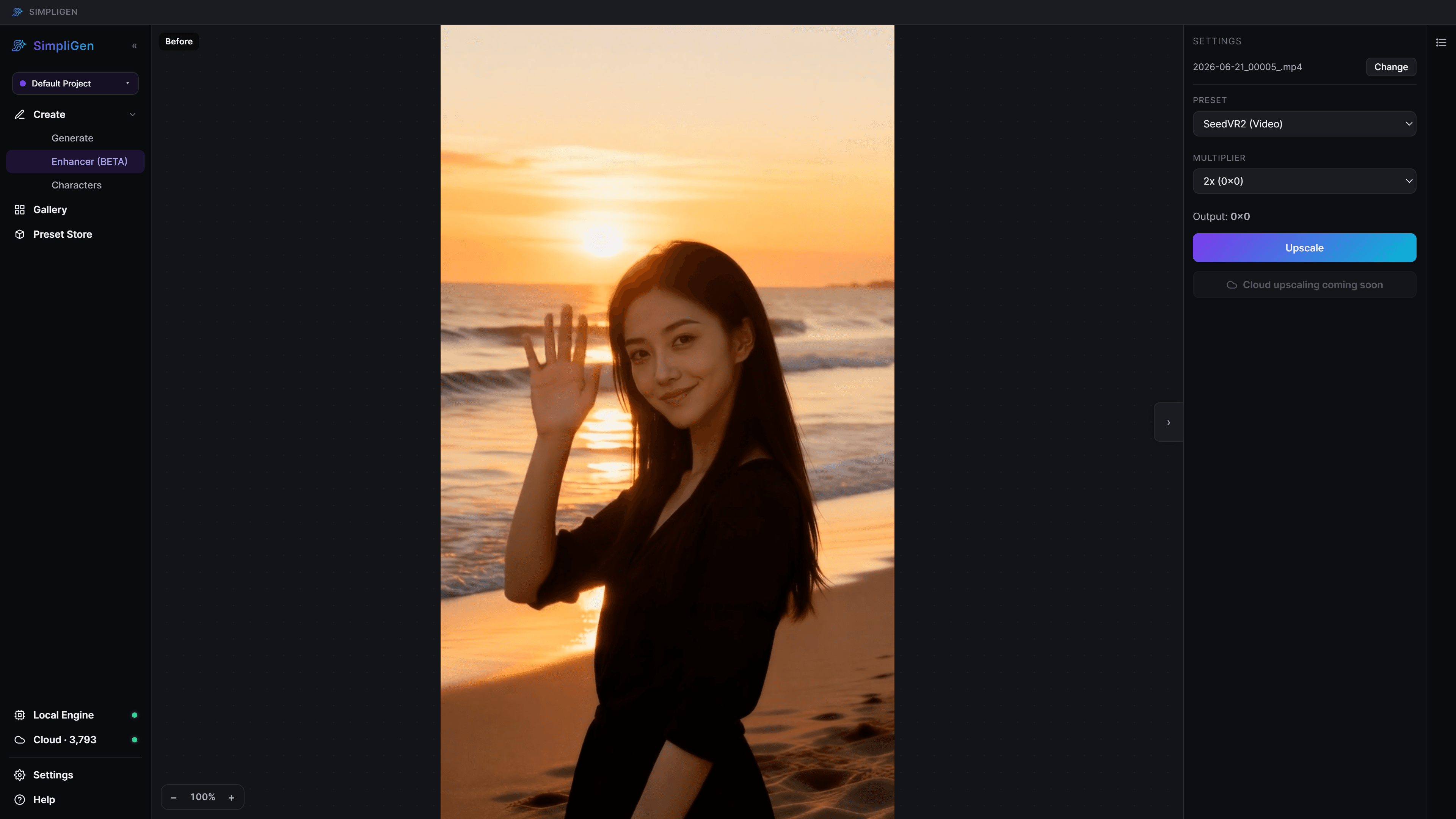
Keep resolution
The Keep resolution option upscales for quality and then brings the image back to its original size. You get cleaner, sharper detail without the file getting larger. This is handy when an image is already the size you need but looks soft.
It is also the right choice when enhancing a video's starting frame: the frame stays the size the motion model expects, just sharper.
Choosing an upscaler
- Diffusion upscalers (for example SeedVR2) give the cleanest, most detailed result. They take longer to run.
- Fast upscalers finish in seconds and are great for a quick pass.
If you want the best possible quality and do not mind waiting, pick the diffusion upscaler. For a fast cleanup, pick a lighter one.
Where it works
The Enhancer is not limited to characters. Any image you generate in SimpliGen can be enhanced the same way, including stills from the prompt builder and a video's starting frame.