Generating
Generating videos
Create video clips in SimpliGen, including text-to-video and image-to-video.
SimpliGen generates short video clips from a text prompt, from a starting image, or both.
Types of video presets
- Text-to-video (t2v): describe the scene and the model animates it from scratch.
- Image-to-video (i2v): provide a starting image and the model brings it to life. See Reference images.
- First-to-last-frame and animate presets: drive motion from images or a guide video, depending on the preset.
The basic flow
- Choose Video as the media type.
- Open a pack and pick a video preset.
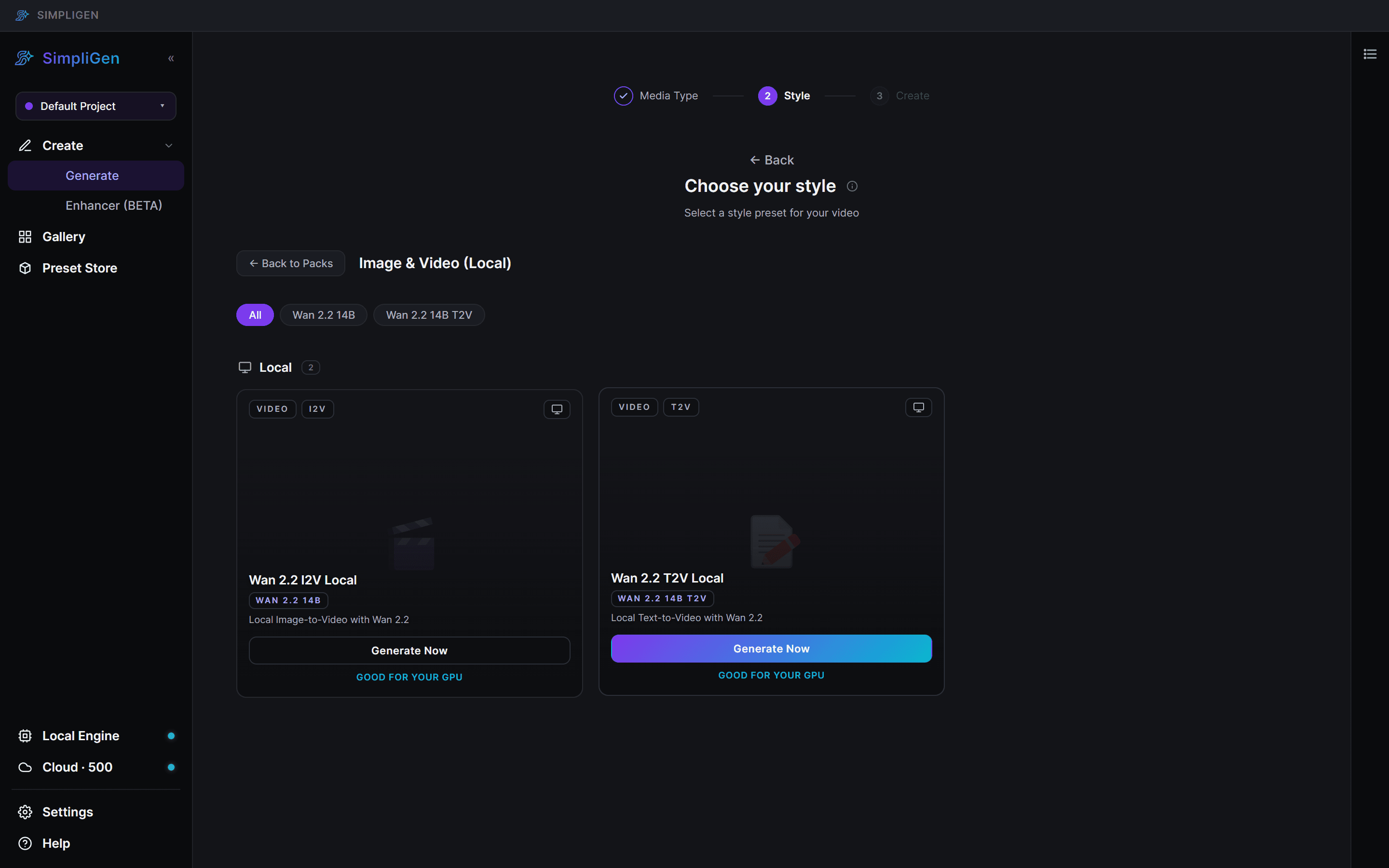
- For image-to-video, attach your starting image. For text-to-video, just write the prompt.
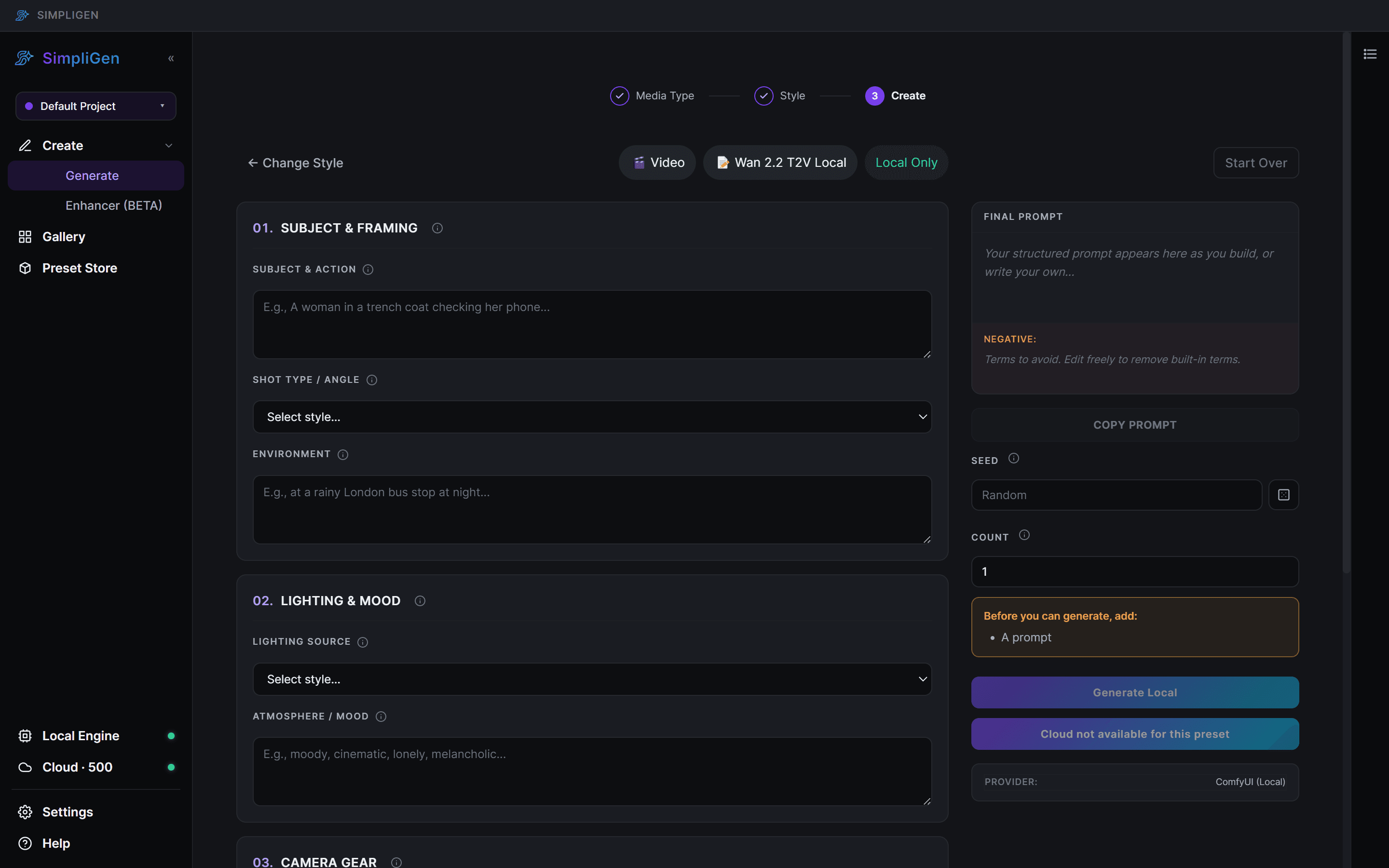
- Set the duration and resolution, then generate.
Cloud is recommended for video
Video is far heavier than images. On a local GPU it needs a lot of VRAM and can be slow, and very large settings can run out of memory. Cloud runs video on powerful GPUs with no setup, so it is usually the smoother choice. See What a generation costs.
For presets that support both, click Generate Cloud (with a credit cost sub-label) to run on our GPUs, or Prepare Local / Generate Local to run on your own machine. API-only presets show a single GENERATE VIDEO button.
If you do run video locally and it stalls or fails, see Out of memory or stuck generations.
Tips
- Keep clips short to start. Shorter durations generate faster and cost less while you dial in the look.
- Describe motion, not just the scene. Words like slow pan, drifting, or handheld guide the movement.
- Lower the resolution while experimenting, then raise it for the final clip.
- Download anything you want to keep. Cloud results are not stored on our servers long term.